How to List an Account or Digital Asset for Sale on Sellibly
Updated October 16, 2026
The short answer
Sign in, open the menu on your dashboard, tap My Listings, then "+ Create New Listing". Fill in the title, description, category and price, add clear screenshots of the asset, and tap "Post Listing". It goes to the Sellibly team for review and appears on the marketplace once approved. Buyers pay into escrow, and you are paid when they release.
Watch it in 45 seconds
Before you start
- You have a Sellibly account and are signed in.
- You own the asset and can hand over full access: login, email, phone and two-step verification.
- You have screenshots ready, for example the profile, follower count and insights. Hide anything private before you upload.
From your dashboard
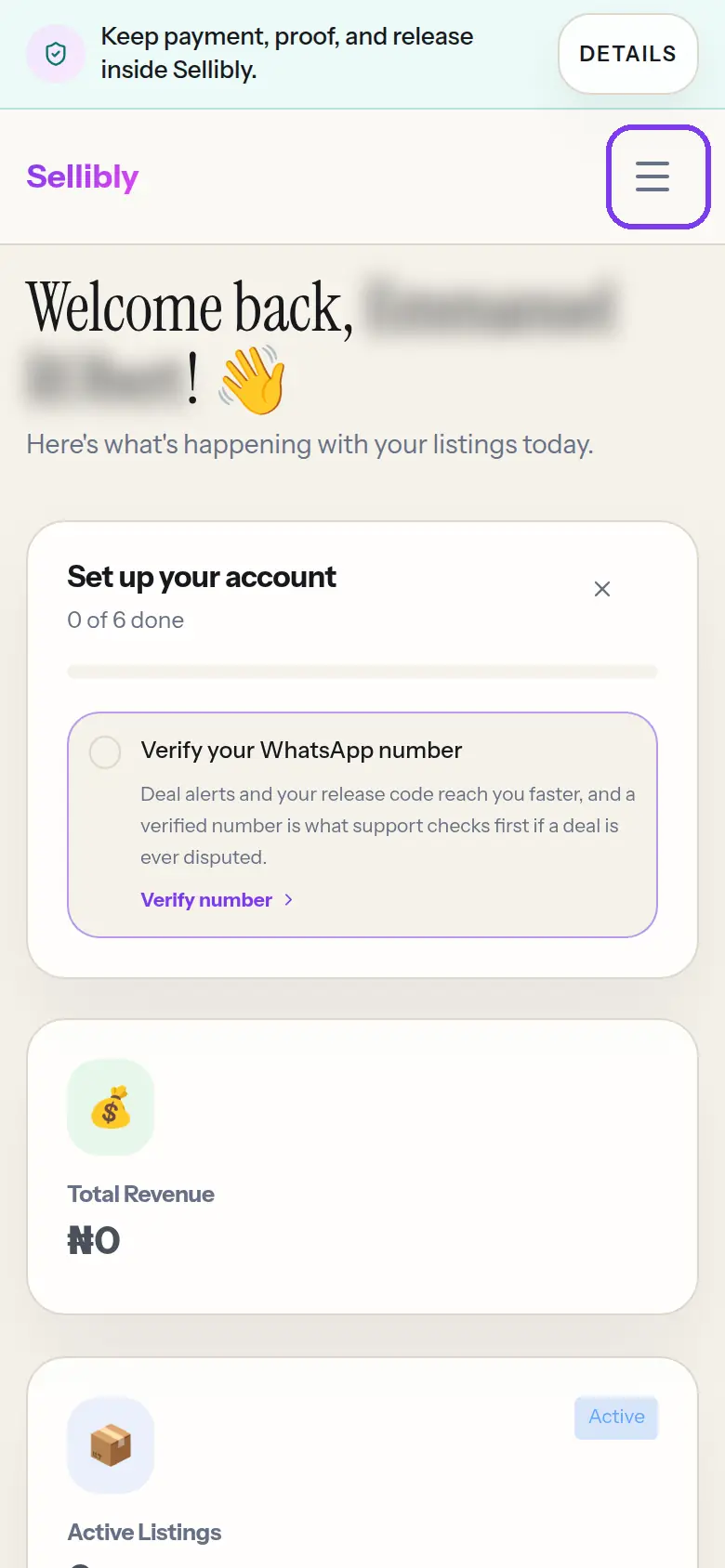
1Open the menu
On your dashboard, tap the menu button at the top right. On a computer the menu is already on the left.
- 2
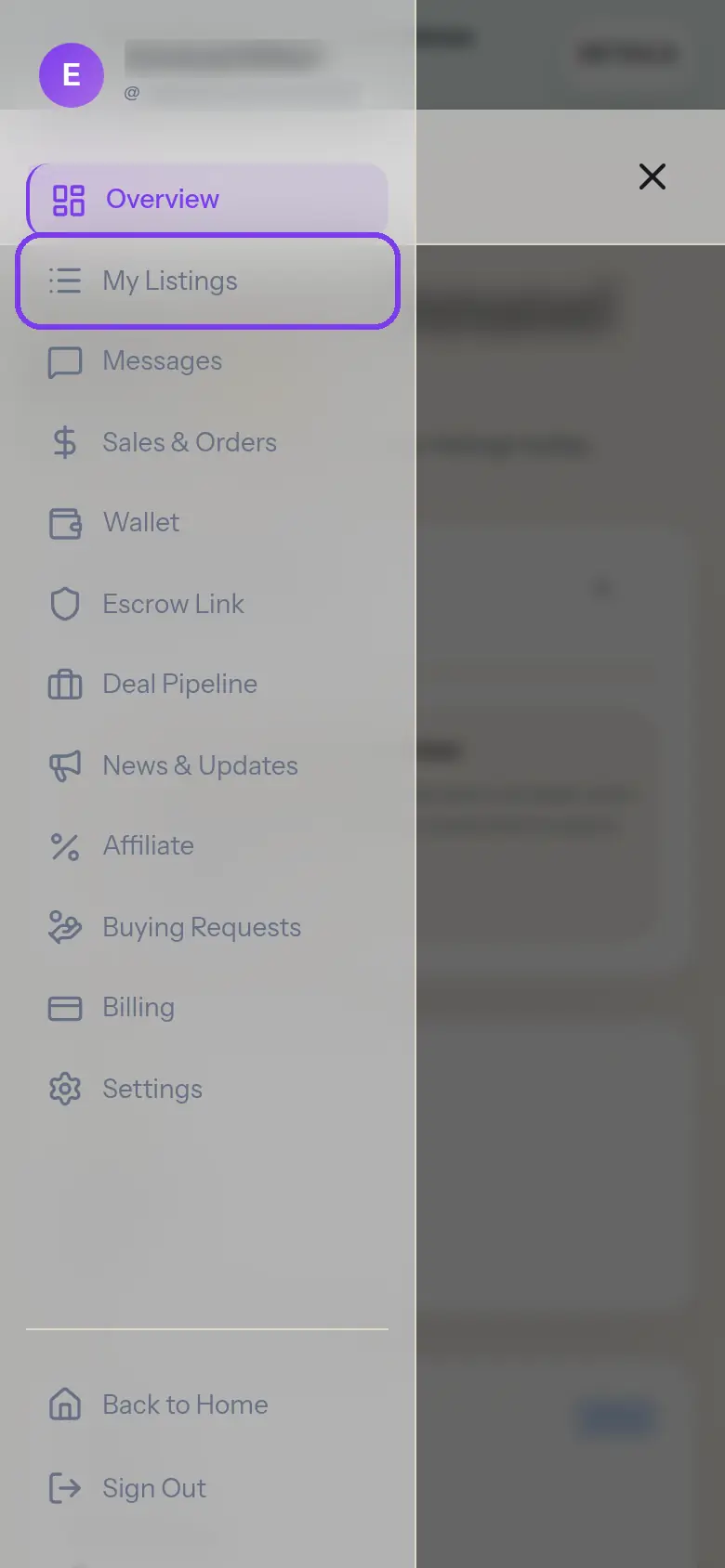
Tap "My Listings"
It is the second item in the menu, under Overview.
- 3
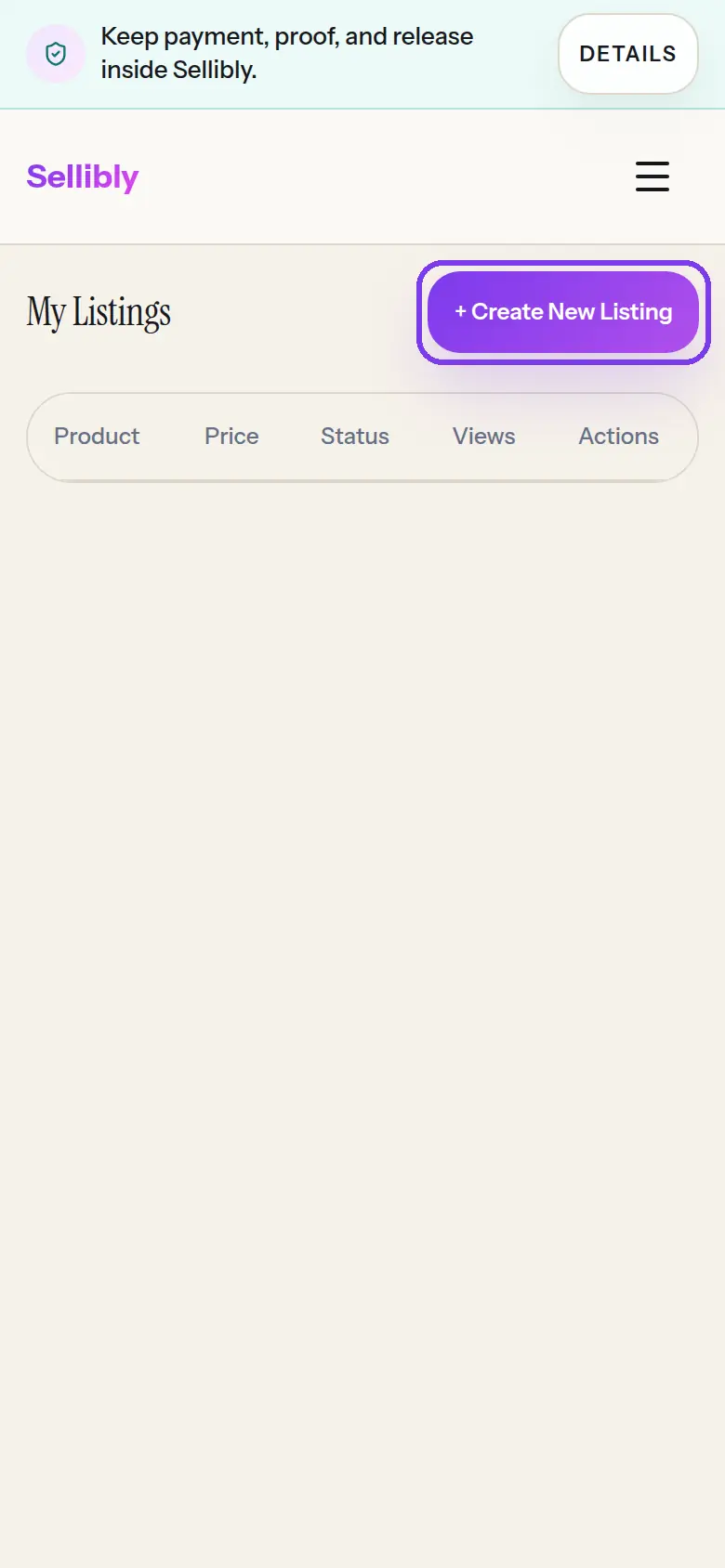
Tap "+ Create New Listing"
My Listings shows every listing you have, with its price, status and views. The button at the top right opens the listing form.
On the listing form
4Write a clear title and description
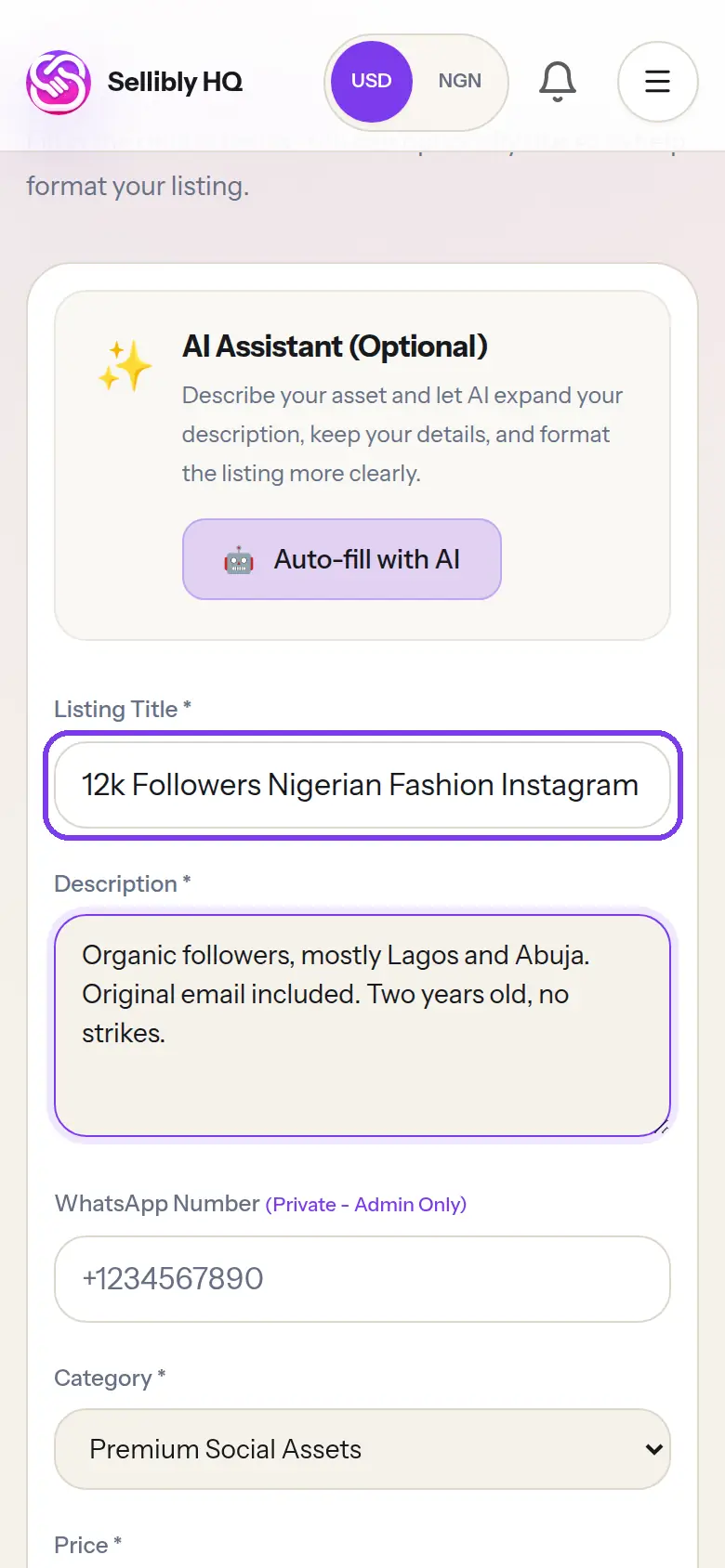
Say exactly what it is in the title: the platform, the size and the niche, for example "12k Followers Nigerian Fashion Instagram Page".
In the description, say where the audience is, how old the account is, whether the original email comes with it, and whether it has any strikes or restrictions. Optional: "Auto-fill with AI" tidies what you wrote into a clean layout, keeping your details.
- 5
Pick the category and set the price
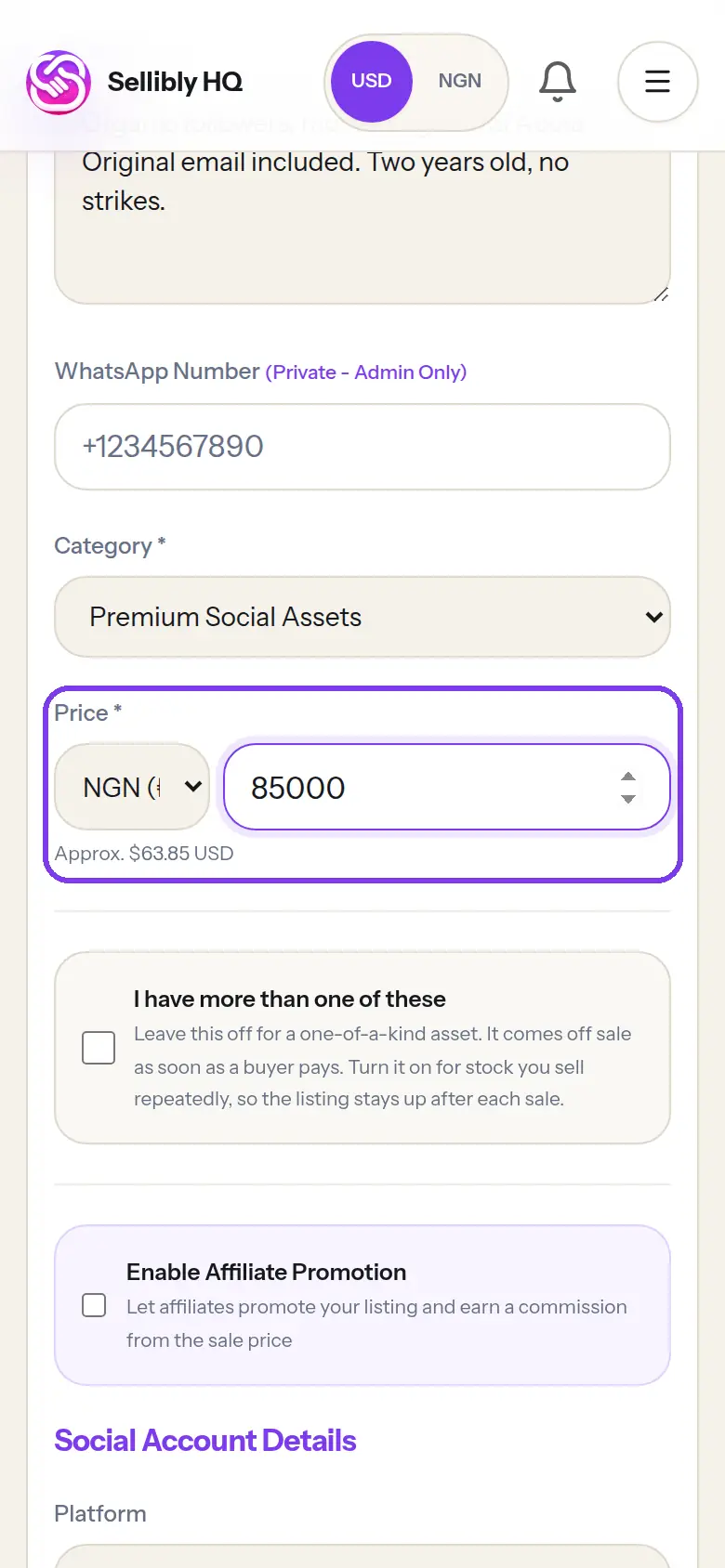
Choose the category, then pick the currency and type your price. The approximate value in the other currency is shown underneath, so you can check it makes sense.
Your WhatsApp number is only seen by Sellibly admins, never by buyers. Tick "I have more than one of these" only if you are selling stock; otherwise the listing comes off sale as soon as someone pays.
- 6
Add photos of the asset
Under "Product Images", tap the box to upload screenshots. Show the profile, the follower count and recent insights. Buyers trust listings they can see.
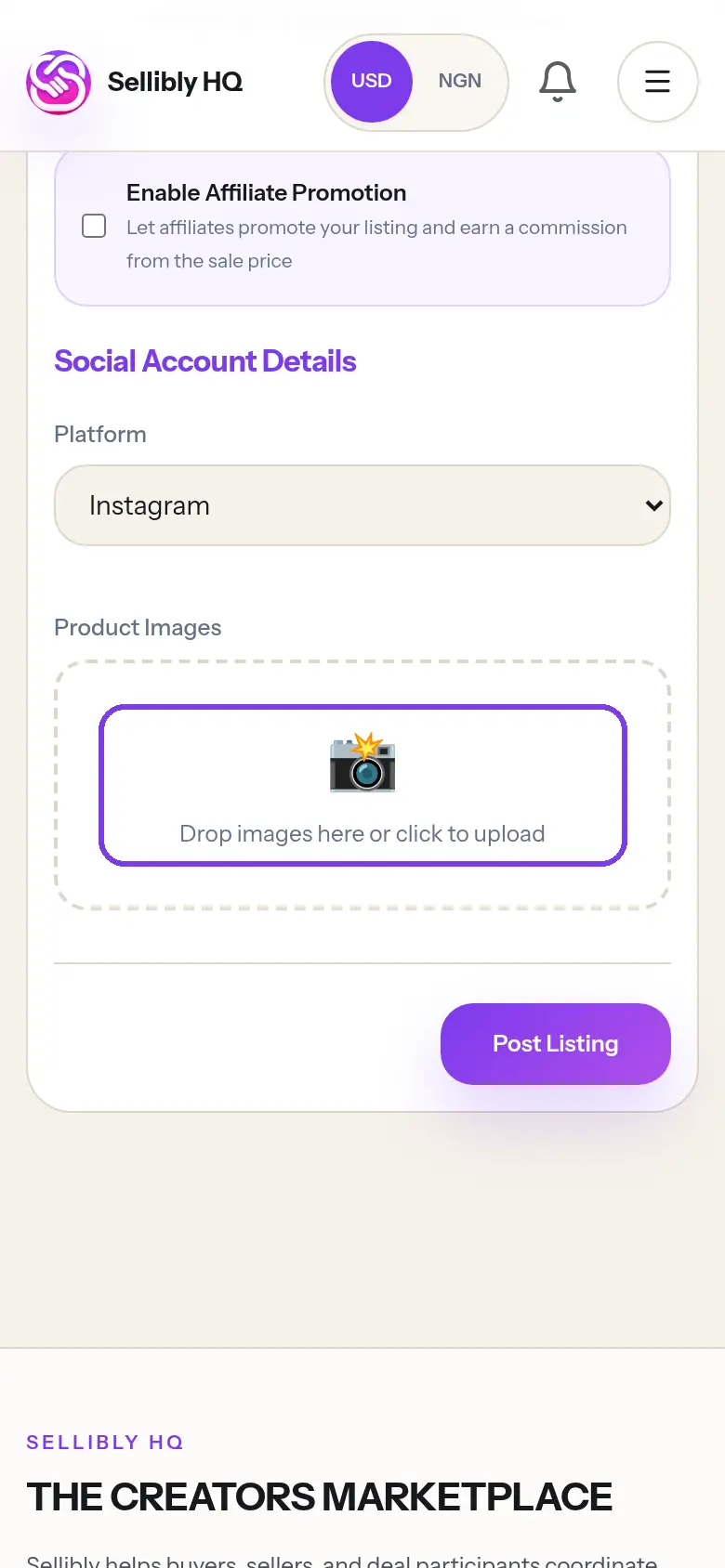 Blur passwords, emails, phone numbers and recovery codes in your screenshots. Never put login details in a listing.
 - 7
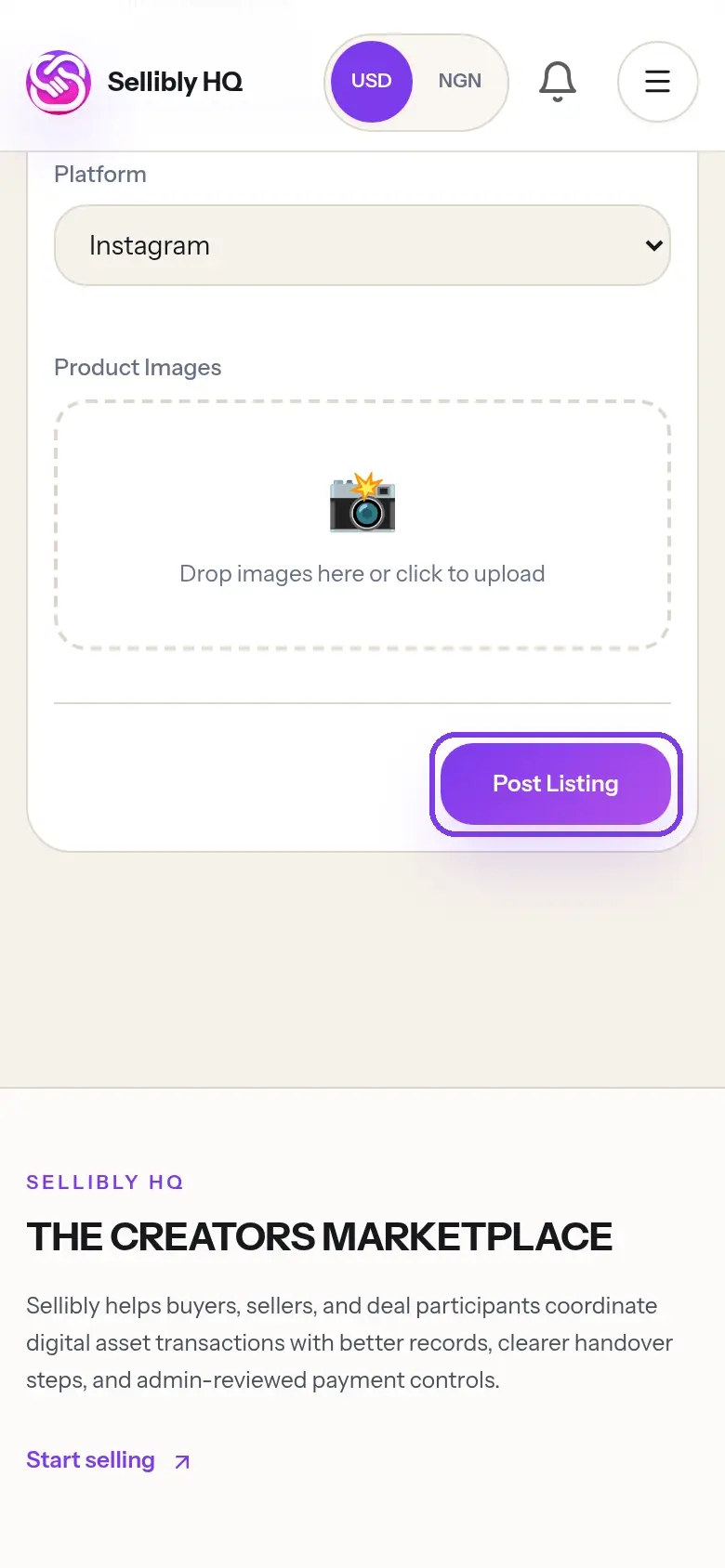
Tap "Post Listing"
Your listing goes to the Sellibly team for review and shows as Pending under My Listings. Once approved it appears on the marketplace.
If your plan's live listing limit is reached, you will see an upgrade notice instead, and everything you typed stays in the form.
When a buyer pays
8Hand over in the protected chat
When someone pays, you get an email and a notification, and the money is held in escrow. Do the handover in the deal's protected chat, so there is a record, and the buyer releases the money to your wallet when everything is in their name.
Common mistakes
- Vague titles like "Instagram page for sale". Buyers search by platform, size and niche.
- Screenshots that show a password, an email or a recovery code.
- Sharing your WhatsApp in the description to move the deal off Sellibly. Deals done outside escrow are not protected for you either.
- Asking the buyer for their release code. Sellibly never needs the seller to see it, and buyers are told to report anyone who asks.
Questions
How long does review take?
Listings are checked by the Sellibly team. You can see the status under Dashboard, My Listings.
Can I edit a listing after posting?
Yes, from My Listings. Changing the title, description, price, category or photos of a live listing sends it back for review, so a buyer always sees what was approved.
When do I get paid?
When the buyer confirms the handover and enters their release code, the money moves to your Sellibly wallet. From there you withdraw it to your bank or crypto wallet.
Next steps
Still stuck?
Send us your deal code (it starts with SLB-) and we will look it up.
Contact support