How to Message a Seller and Find Replies on Sellibly
Updated October 16, 2026
The short answer
On a listing, tap the purple chat button at the bottom right, read the three chat rules the first time, type your message and send. Before your first message, Sellibly asks you to turn on notifications (and install the app where your browser can) so you hear the reply. Later, find every conversation under Dashboard, Messages.
Watch it in 45 seconds
Before you start
- You are signed in to Sellibly.
- You are on the listing you want to ask about.
From a listing
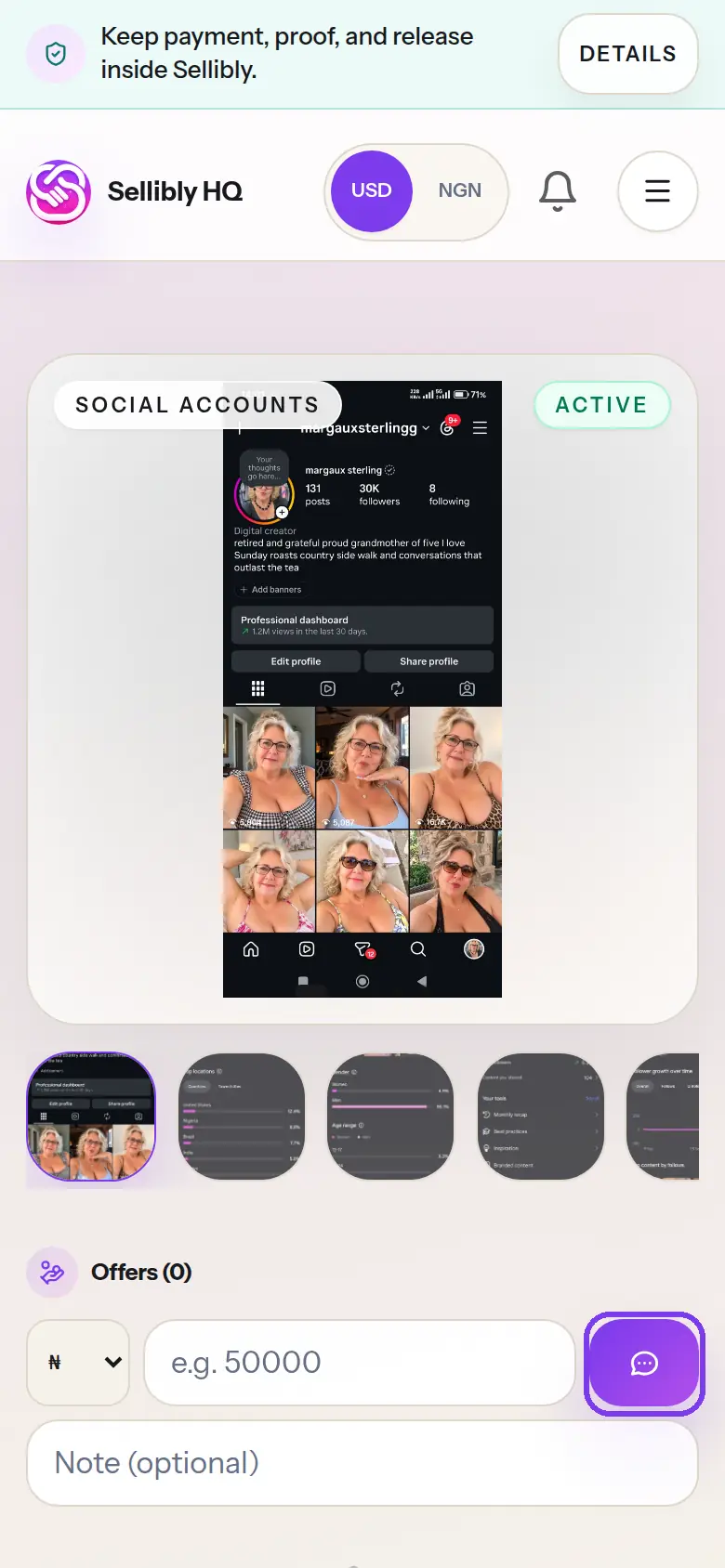
1Tap the chat button
On the listing, tap the round purple chat button at the bottom right of the screen. It opens a chat with that listing's seller, with the listing's name and price at the top.
- 2
Read the chat rules, the first time
The first time you message a seller, Sellibly shows three rules: keep the deal on Sellibly, never pay the seller directly, and release only when the account is fully yours. Tap "I understand, start chatting".
Phone numbers and links to WhatsApp, Telegram, Signal and Discord are blocked in chat, because a deal moved off Sellibly has no escrow behind it.
- 3
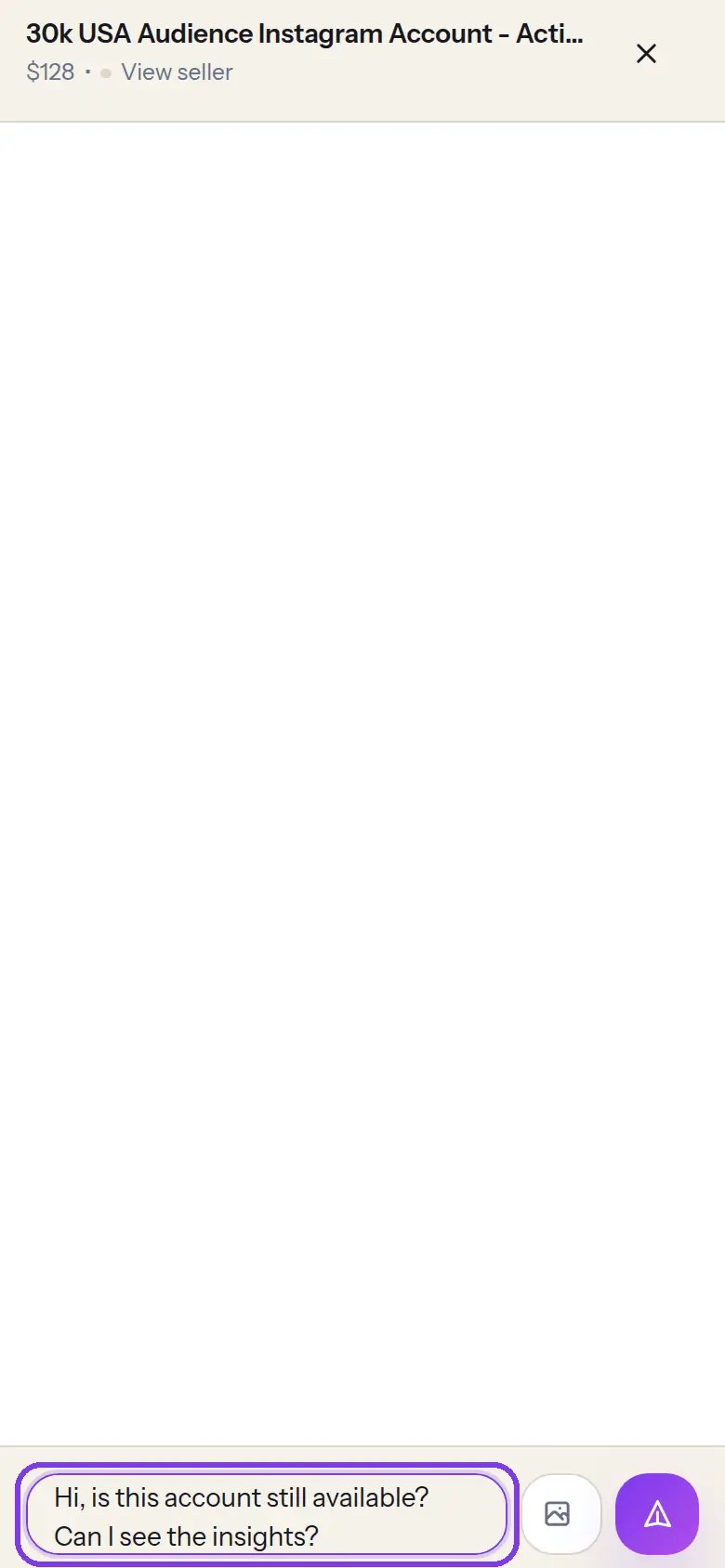
Type your message
Ask what you need to know: is it still available, can you see the insights, does the original email come with it.
- 4
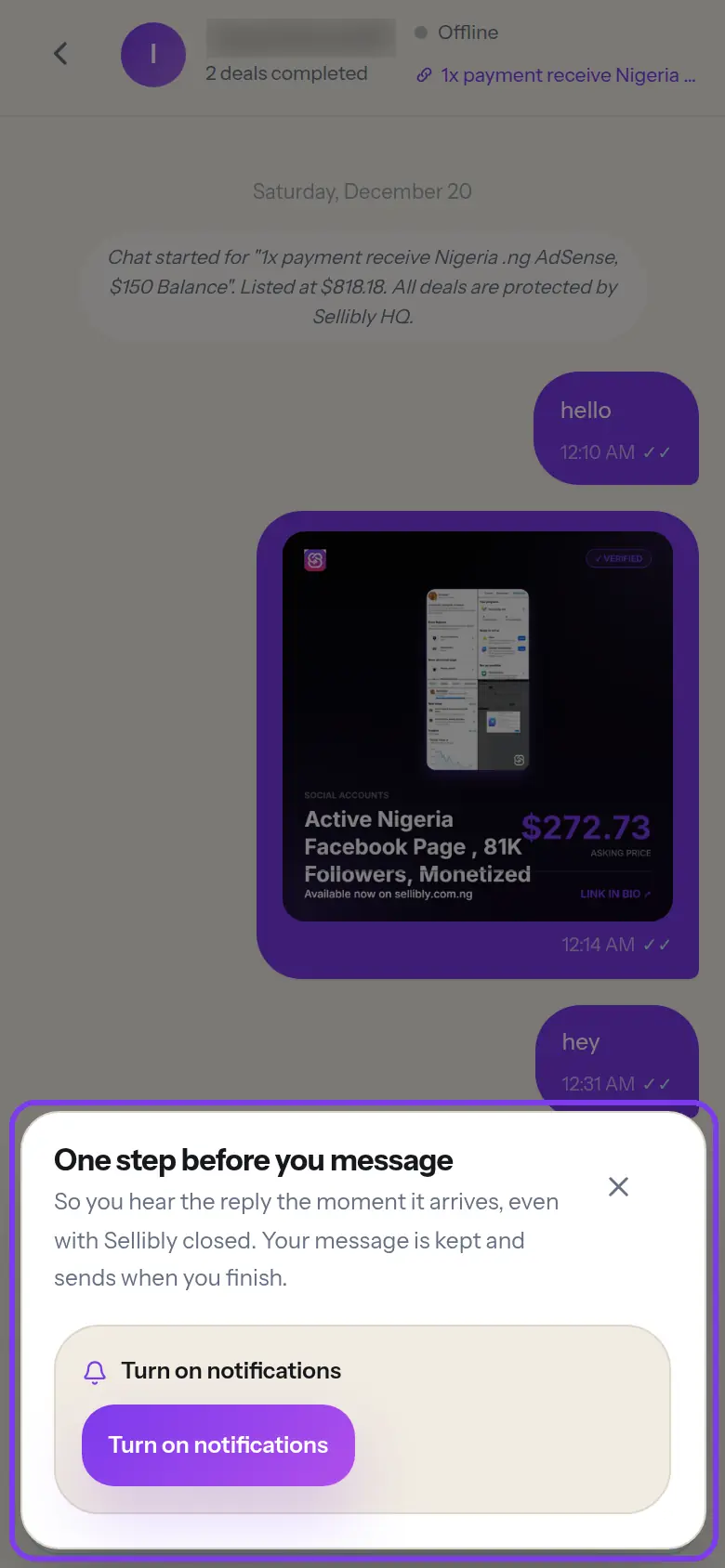
Turn on notifications when asked
Before your first message goes, Sellibly asks you to turn on notifications, and to install the app where your browser allows it, so you hear the reply the moment it arrives, even with Sellibly closed.
Tap "Turn on notifications" and allow it. Your message is kept and sends by itself when you finish.
 On iPhone, notifications only work from the installed app: tap Share in Safari, choose "Add to Home Screen", then open Sellibly from your Home Screen. In WhatsApp or Instagram's built-in browser, open the page in Chrome or Safari first.
 Finding the reply later
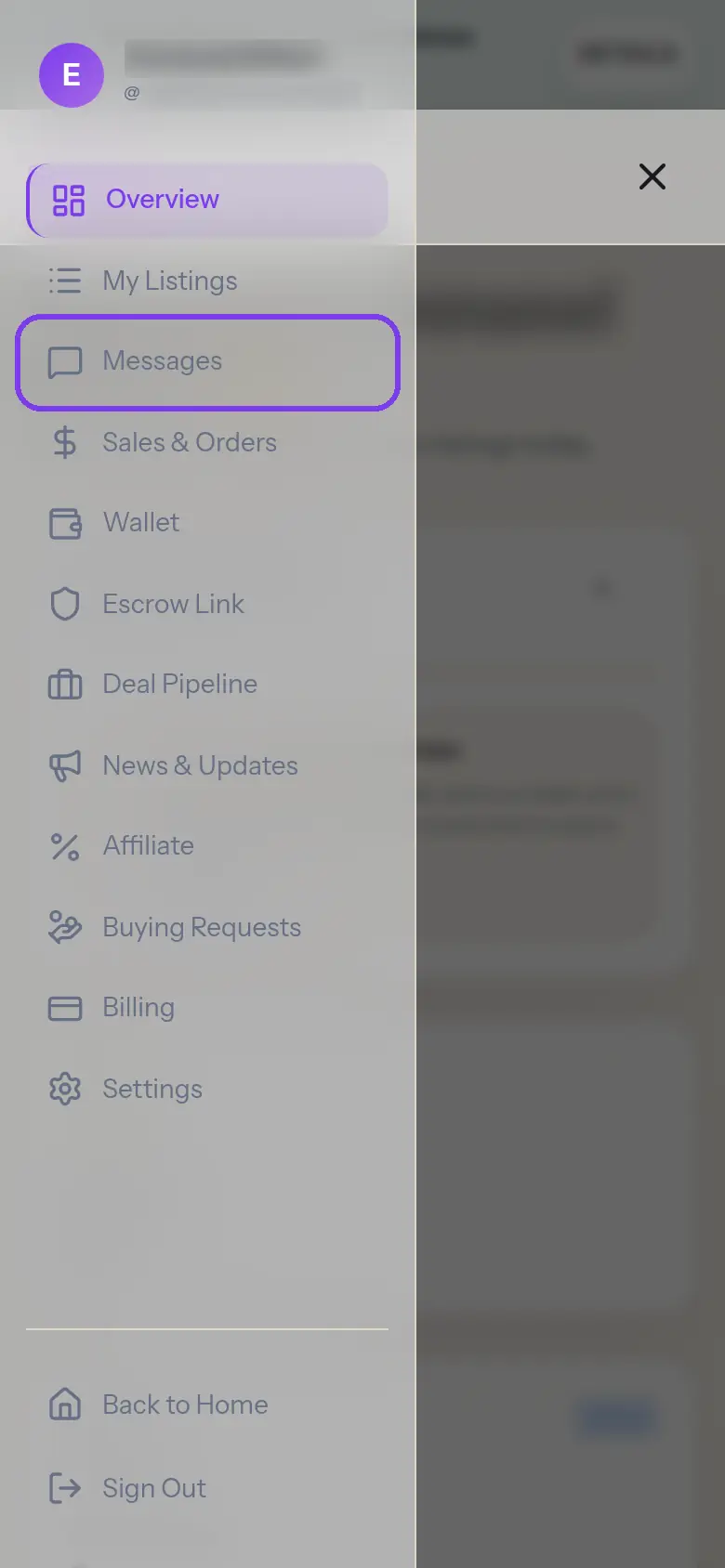
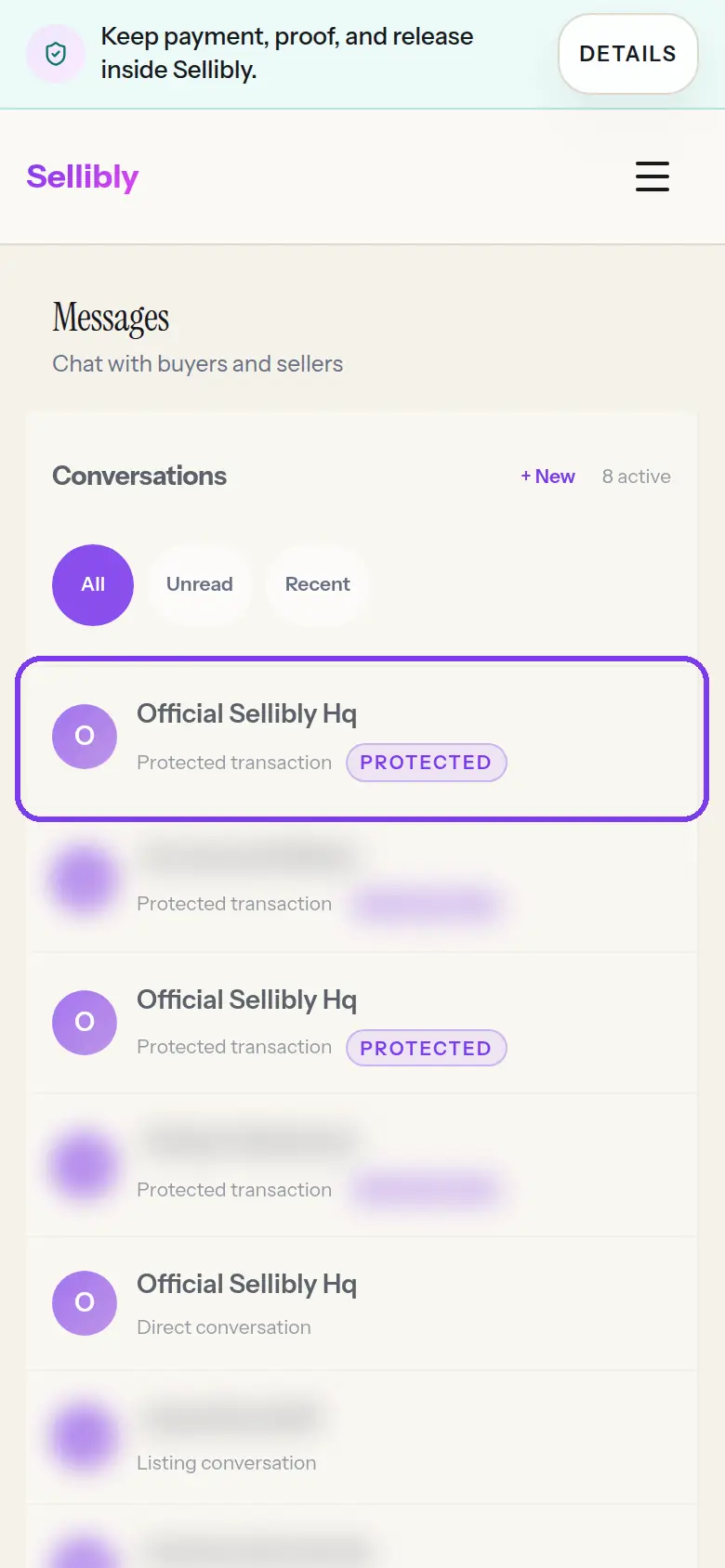
5Open the menu and tap "Messages"
Tapping a notification takes you straight to the conversation. Otherwise, open the menu on your dashboard and tap Messages.
- 6
Tap the conversation
Every conversation is listed with a label: "Protected transaction" for a paid deal, "Listing conversation" for a question about a listing, "Direct conversation" otherwise. Use Unread to see only new replies.
- 7
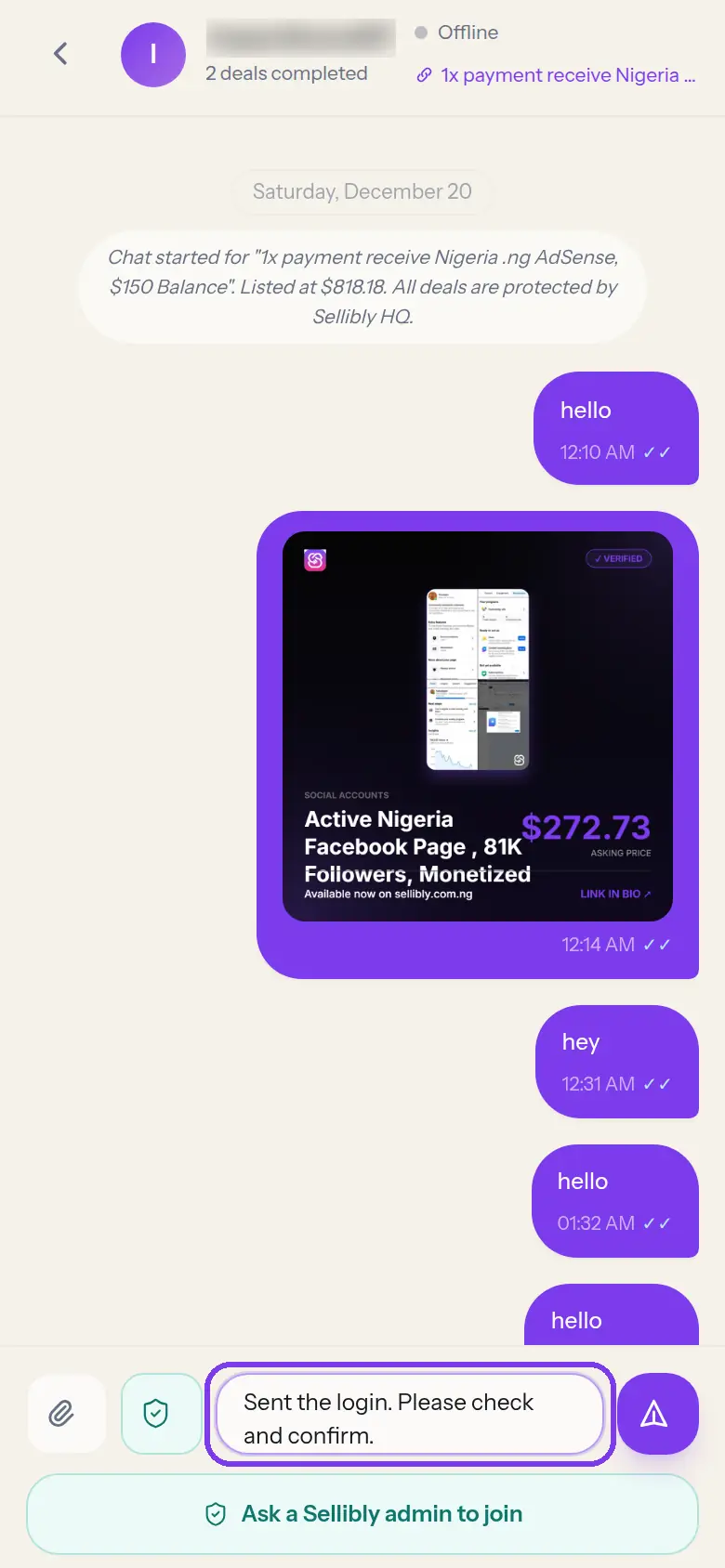
Reply in the same chat
Type in the box at the bottom and send. Keep the whole deal in this chat: it is the record Sellibly looks at if anything goes wrong.
Common mistakes
- Skipping notifications and missing the seller's reply. Deals go cold when nobody hears back.
- Trying to move the chat to WhatsApp. Numbers and invite links are blocked, and a deal done off Sellibly is not protected.
- Paying because a seller asked in chat to "pay me directly". Only protected checkout holds your money.
Questions
Why do I have to turn on notifications to send a message?
Because a message is the moment you start waiting on someone. Without notifications, most replies are missed and the deal goes cold. Your typed message is kept and sent once you finish.
I blocked notifications by mistake.
No website can ask again once they are blocked. Open your browser's site settings for sellibly.com.ng, set Notifications to Allow, then come back and send.
Can I share my phone number after paying?
In a protected chat whose deal is paid, phone numbers and emails are allowed, because the handover may need them.
Next steps
Still stuck?
Send us your deal code (it starts with SLB-) and we will look it up.
Contact support