How to Pay a Seller Safely with a Sellibly Escrow Link
Updated October 16, 2026
The short answer
Open the link the seller sent you (it starts with sellibly.com.ng/pay/SLB-). Check the total and the fee breakdown, pick a payment route, type an email you can open right now under "Buyer email", and tap "Continue to secure checkout". Your money is held by Sellibly, not sent to the seller, until you enter the release code that comes to that email.
Watch it in 51 seconds
Before you start
- The seller has created a deal and sent you its link. It always starts with sellibly.com.ng/pay/SLB-. If the address is anything else, do not pay.
- You have agreed the price and what you are getting with the seller.
- You can open the email inbox you will type on the payment page.
Where you start: the seller's message
1Tap the link the seller sent you
Sellers share their Sellibly link in WhatsApp, Instagram, X or wherever you have been talking. Check it starts with sellibly.com.ng/pay/SLB- before you tap it.
The page opens in your browser. You do not need a Sellibly account to pay.
A seller who asks you to pay into a bank account or wallet "to save the fee" is asking you to skip escrow. Only money paid on this page is protected.On the payment page
2Check the total you will pay
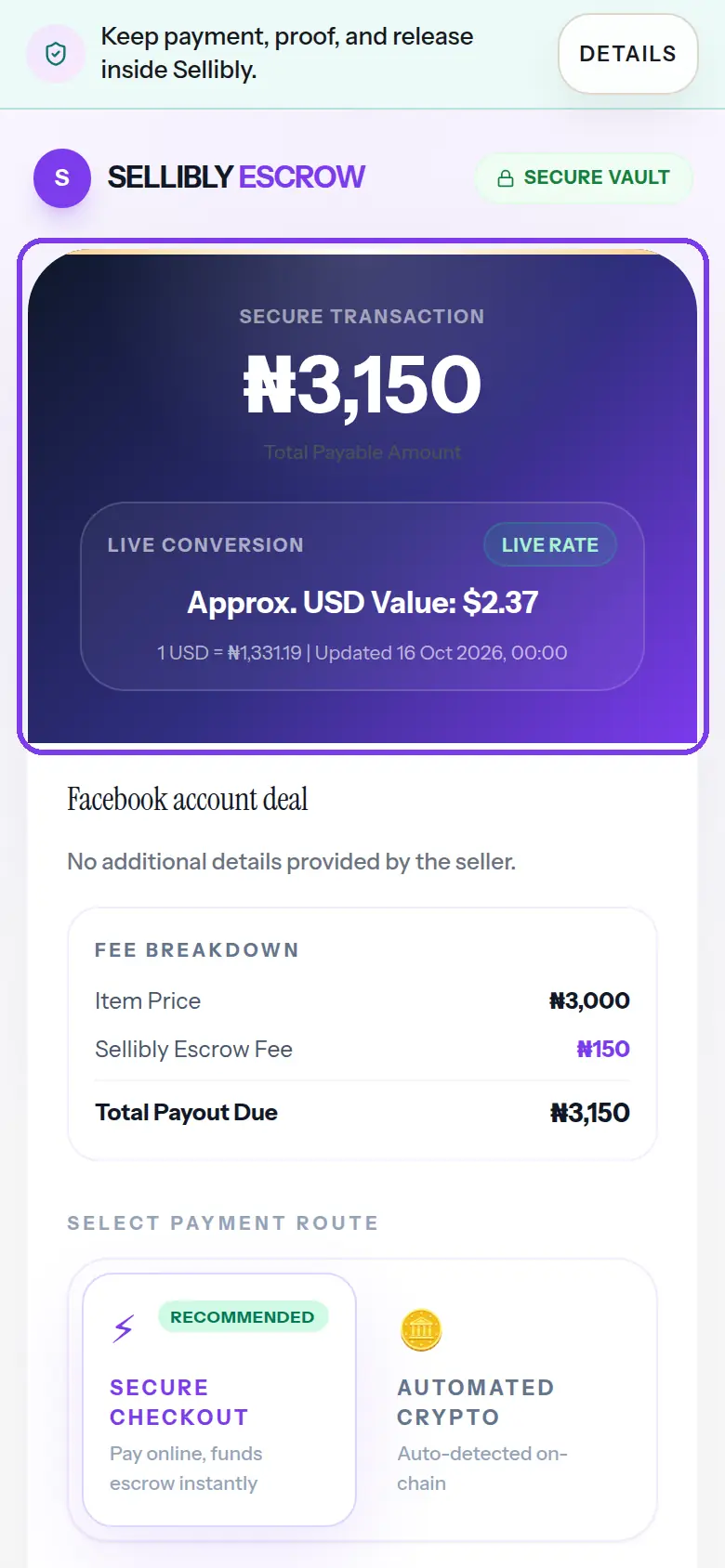
The purple box at the top shows the total payable amount for the deal, with an approximate value in the other currency at today's rate.
- 3
Read the fee breakdown
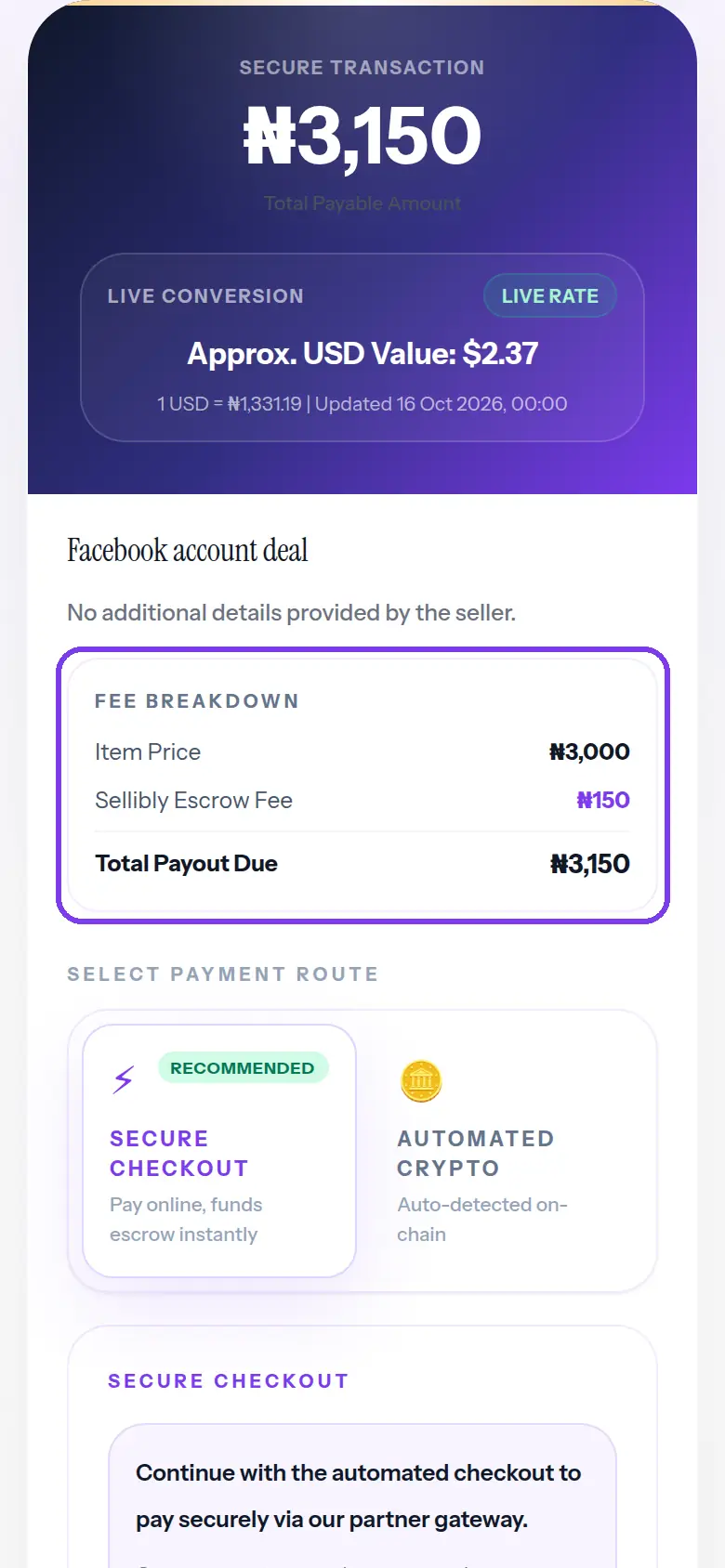
Under the deal title, the fee breakdown splits the total into the item price the seller set and the Sellibly escrow fee. Make sure the item price is what you agreed.
- 4
Pick a payment route
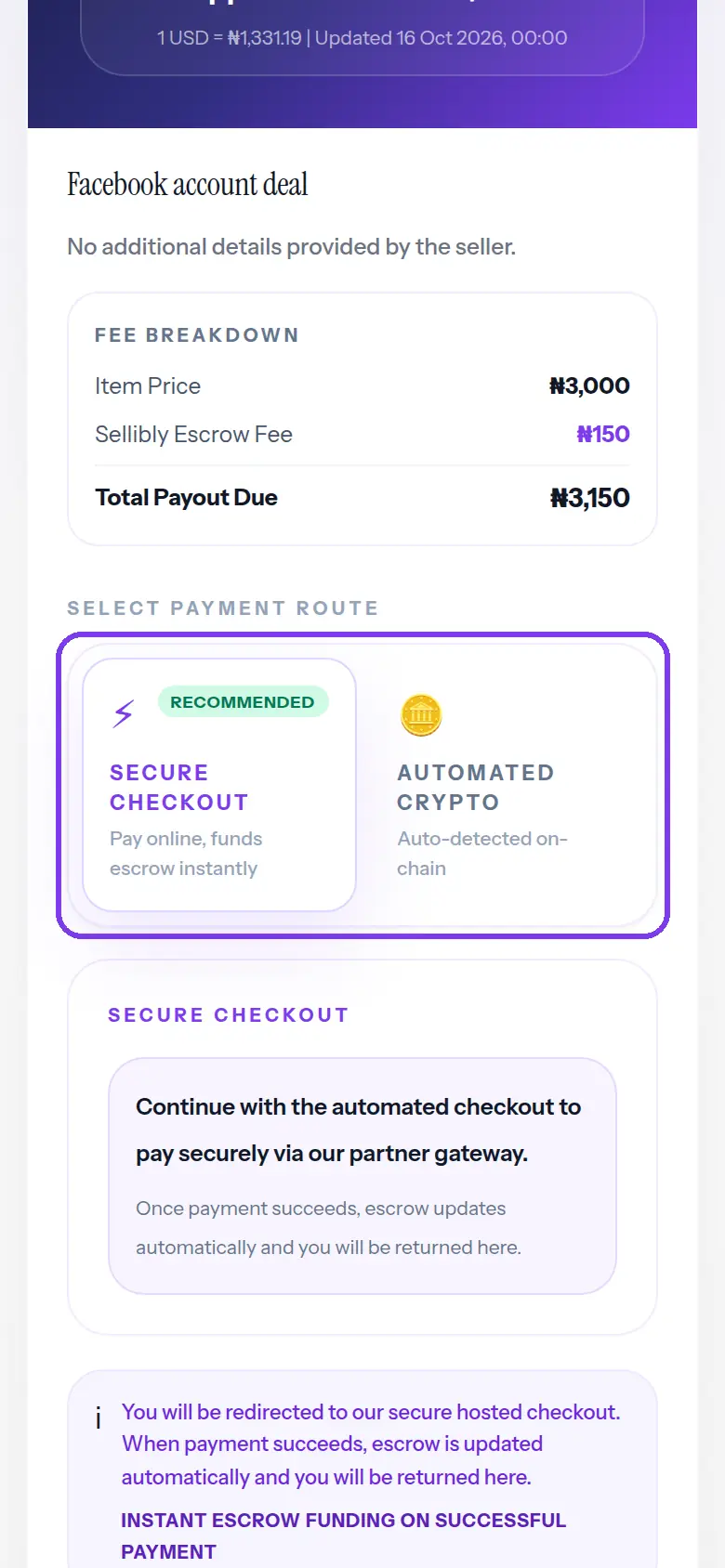
Under "Select payment route", choose how to pay. Secure Checkout takes you to a hosted payment page and funds the escrow as soon as the payment succeeds. Automated Crypto gives you a wallet address for stablecoins and funds the escrow when the deposit is detected.
Both routes protect you the same way. The one marked Recommended is the quickest right now.
- 5
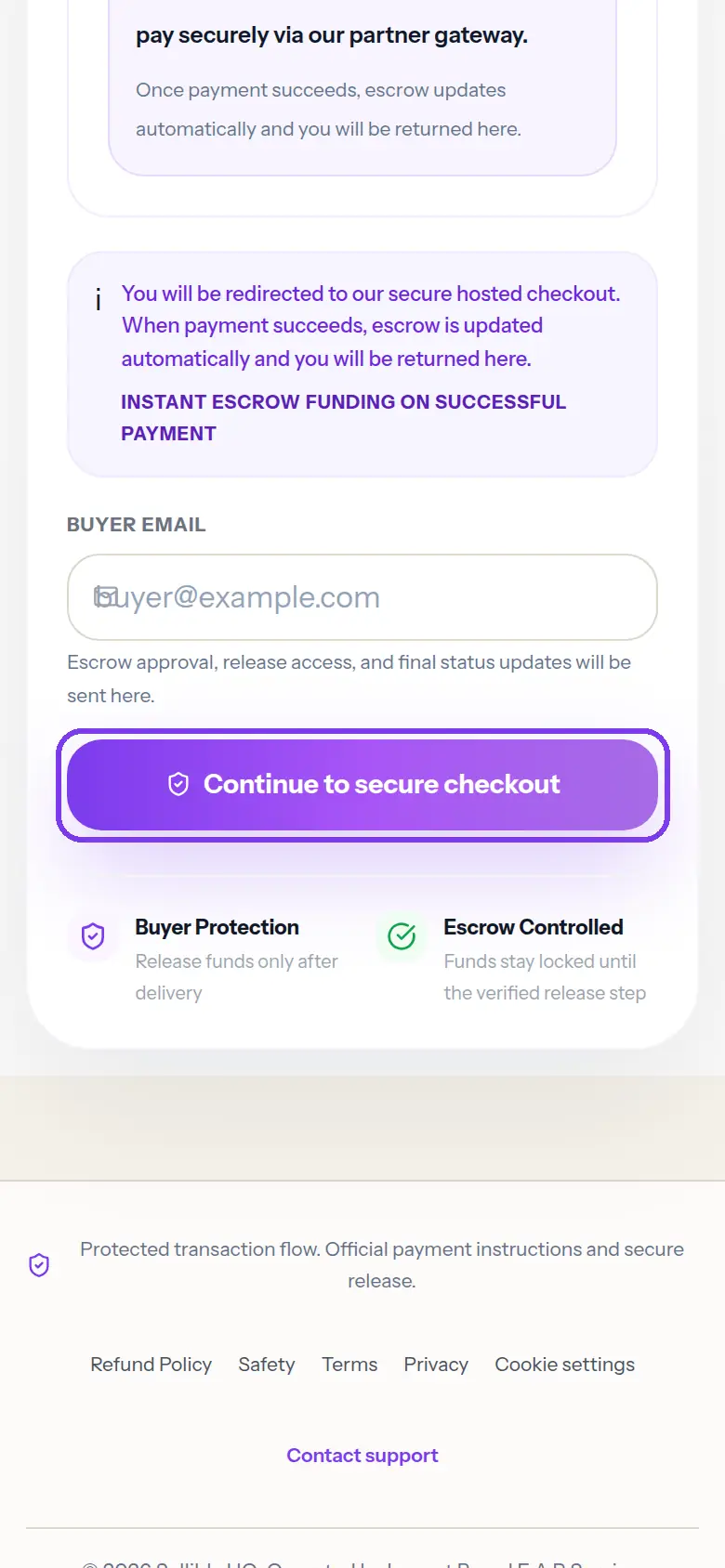
Type your own email under "Buyer email"
This is where Sellibly sends your escrow approval, your release code and every update on the deal. Use an inbox you can open now, on this phone if possible.
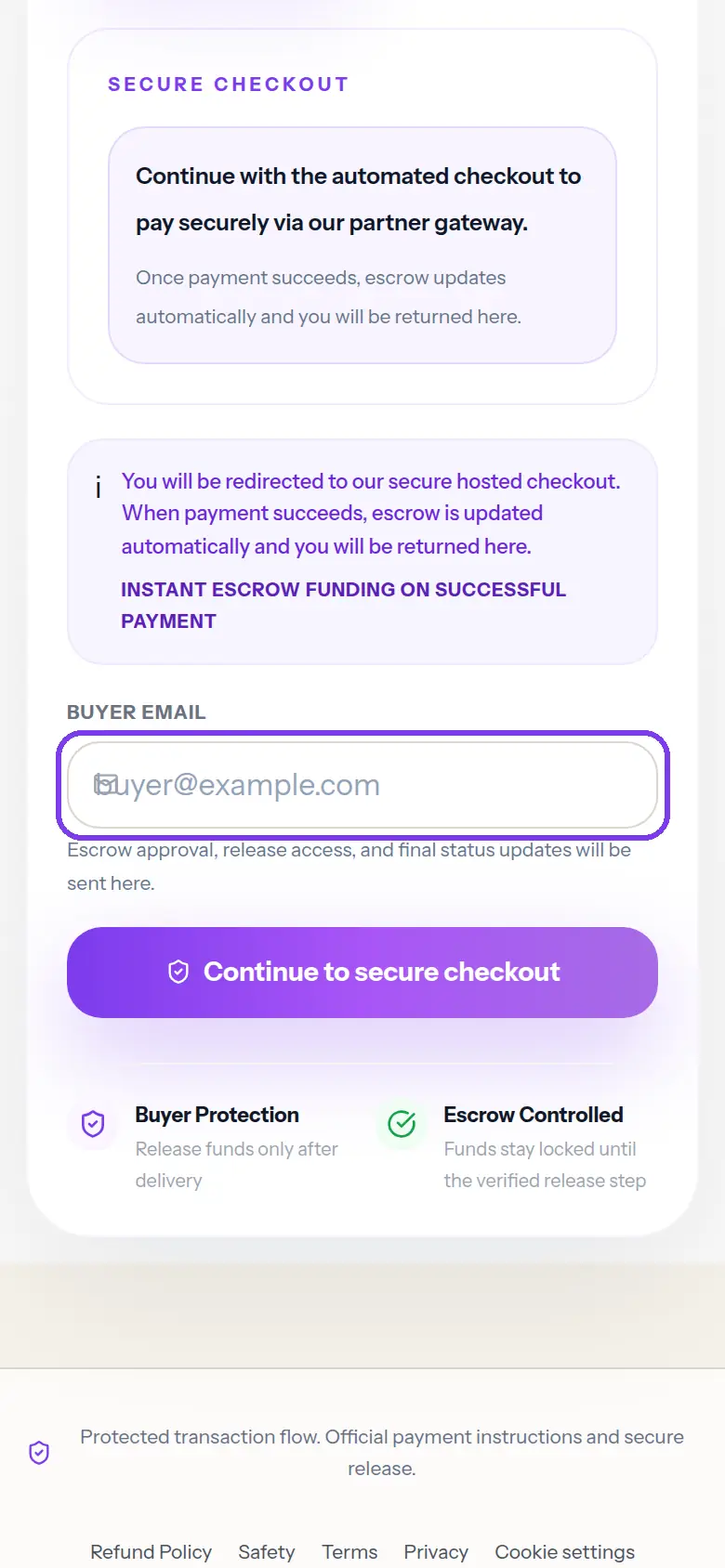 Never type the seller's email here, and never let them fill it in for you. Whoever owns this inbox holds the release code.
 - 6
Tap "Continue to secure checkout" and pay
You are taken to the secure checkout to pay. When the payment succeeds, the escrow updates by itself and you are brought back to this page, which then shows "Payment confirmed".
After you pay
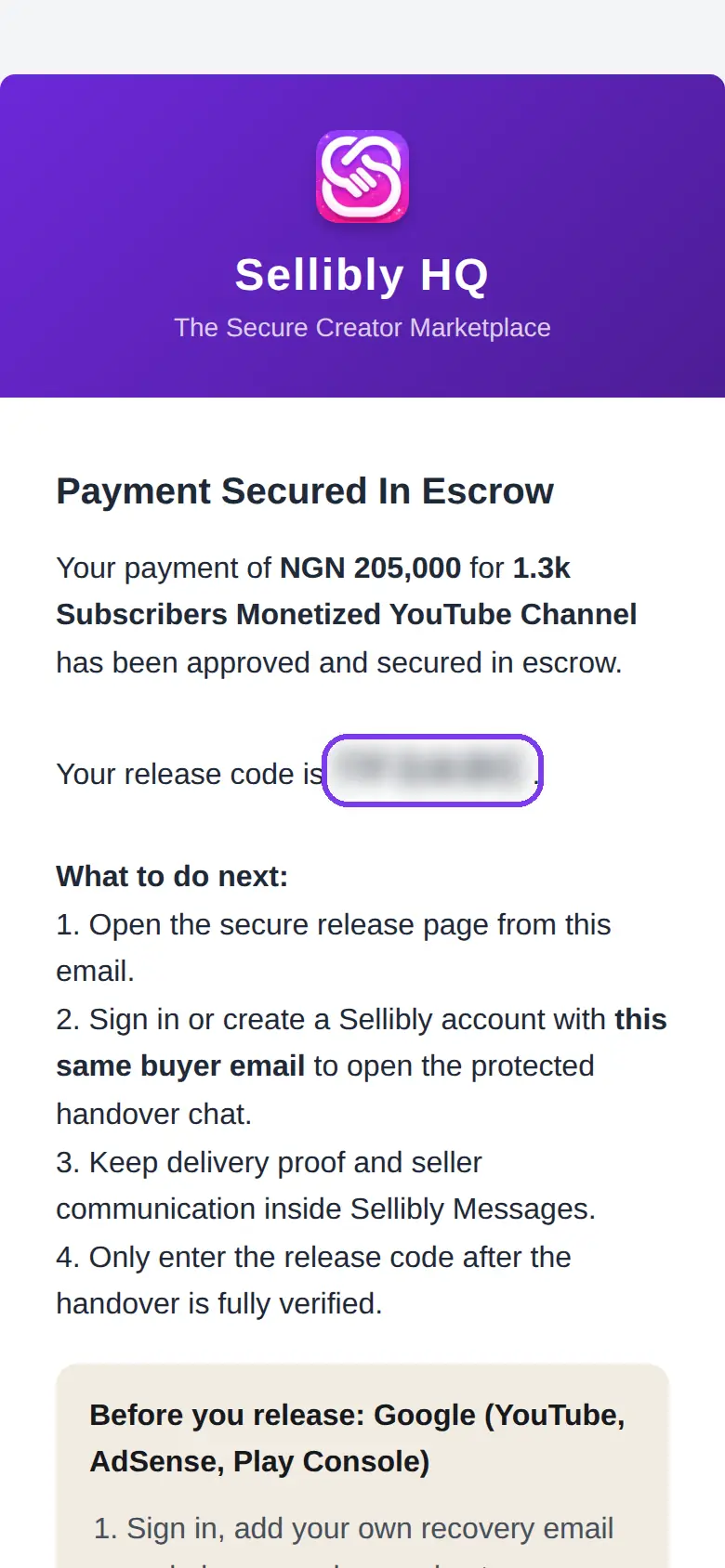
7Watch for the "Escrow Approved" email
Within minutes you get an email titled "Escrow Approved - Release Code for" your deal. It holds your 6-character release code and a button to the secure release page. Do the handover with the seller, check everything, and only then release.
The full walk-through is in our guide to finding and using your release code.
Common mistakes
- Paying a link that does not start with sellibly.com.ng/pay/SLB-. Look-alike pages exist; check the address bar.
- Typing an email you cannot open. The release code only ever goes to that inbox.
- Paying the seller outside the link "to save the fee". That money is not in escrow and Sellibly cannot get it back.
- Closing the page during payment. Wait to be brought back and see "Payment confirmed".
Questions
Do I need a Sellibly account to pay?
No. You can pay from the link with just your email. Creating an account later with the same email lets you see the deal under Dashboard, Sales & Orders, and chat with the seller in protected messages.
Who pays the escrow fee?
The fee breakdown on the link shows it. On a seller's link the buyer pays it on top of the item price, and the page shows the exact amount before you pay.
I paid but the page did not change.
Give it a minute and refresh. If it still does not show "Payment confirmed", check your email for the Escrow Approved message, then contact support with the deal code (SLB-...).
Can the seller take the money before I get the account?
No. The money is held by Sellibly until you enter the release code from your email on the secure release page.
Next steps
Still stuck?
Send us your deal code (it starts with SLB-) and we will look it up.
Contact support