How to Find and Use Your Release Code on Sellibly
Updated October 16, 2026
The short answer
After your payment is confirmed, Sellibly emails your release code with the subject "Escrow Approved - Release Code for [your deal]". Open the secure release page from the button in that email, check the account is fully yours, then enter the 6-character code to pay the seller. The code is never shown anywhere else, so if the email is missing, check spam and then contact support with your deal code.
Watch it in 71 seconds
Before you start
- You are paying through Sellibly: the "Buy with protected checkout" button on a listing, or a seller's payment link (sellibly.com.ng/pay/SLB-...). Money sent to a seller any other way never reaches escrow, so no release code exists for it.
- You can open the email inbox you typed at checkout.
- The seller has handed over the account, or is about to.
If you are buying from the marketplace
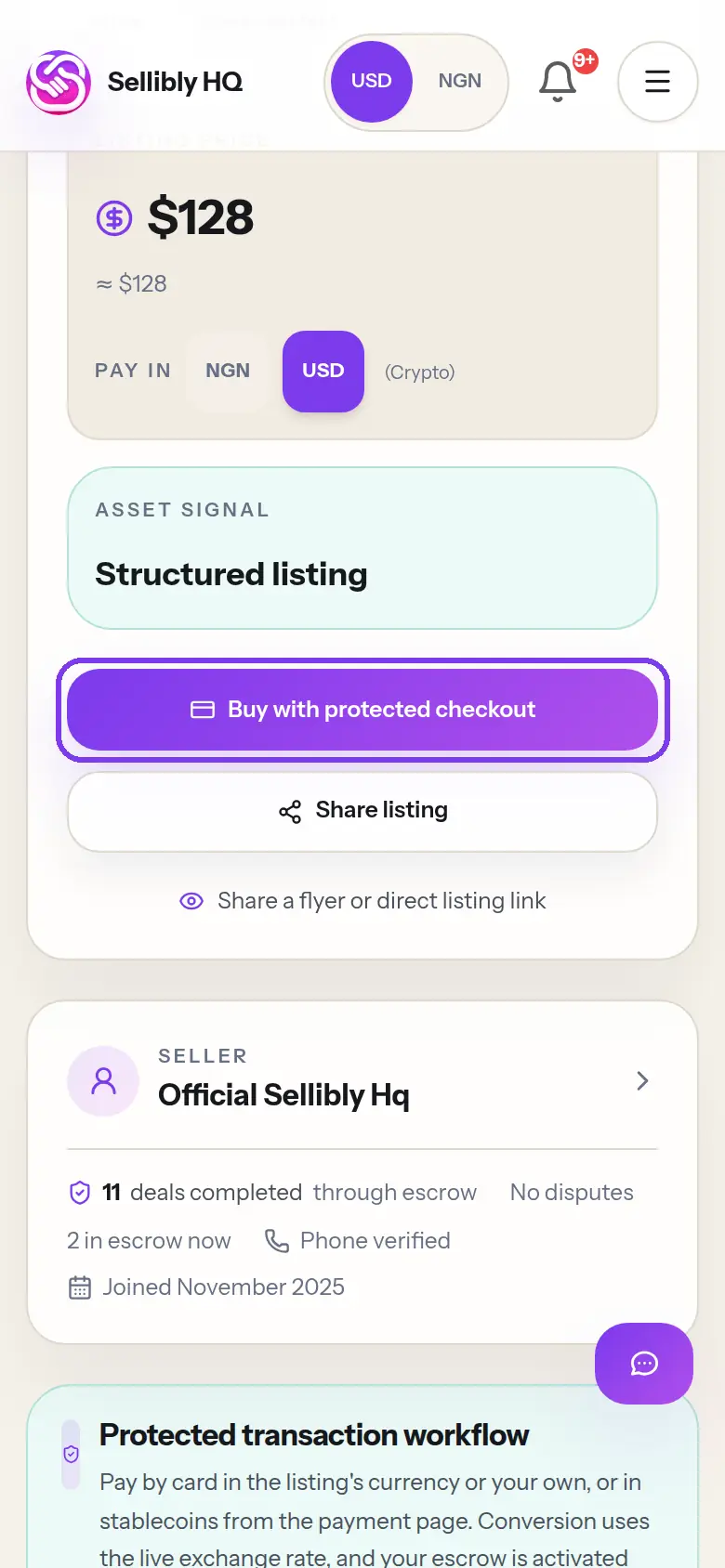
1Tap "Buy with protected checkout" on the listing
Open the listing you want and tap the purple "Buy with protected checkout" button under the price. This is the only buy button that puts your money in escrow.
- 2
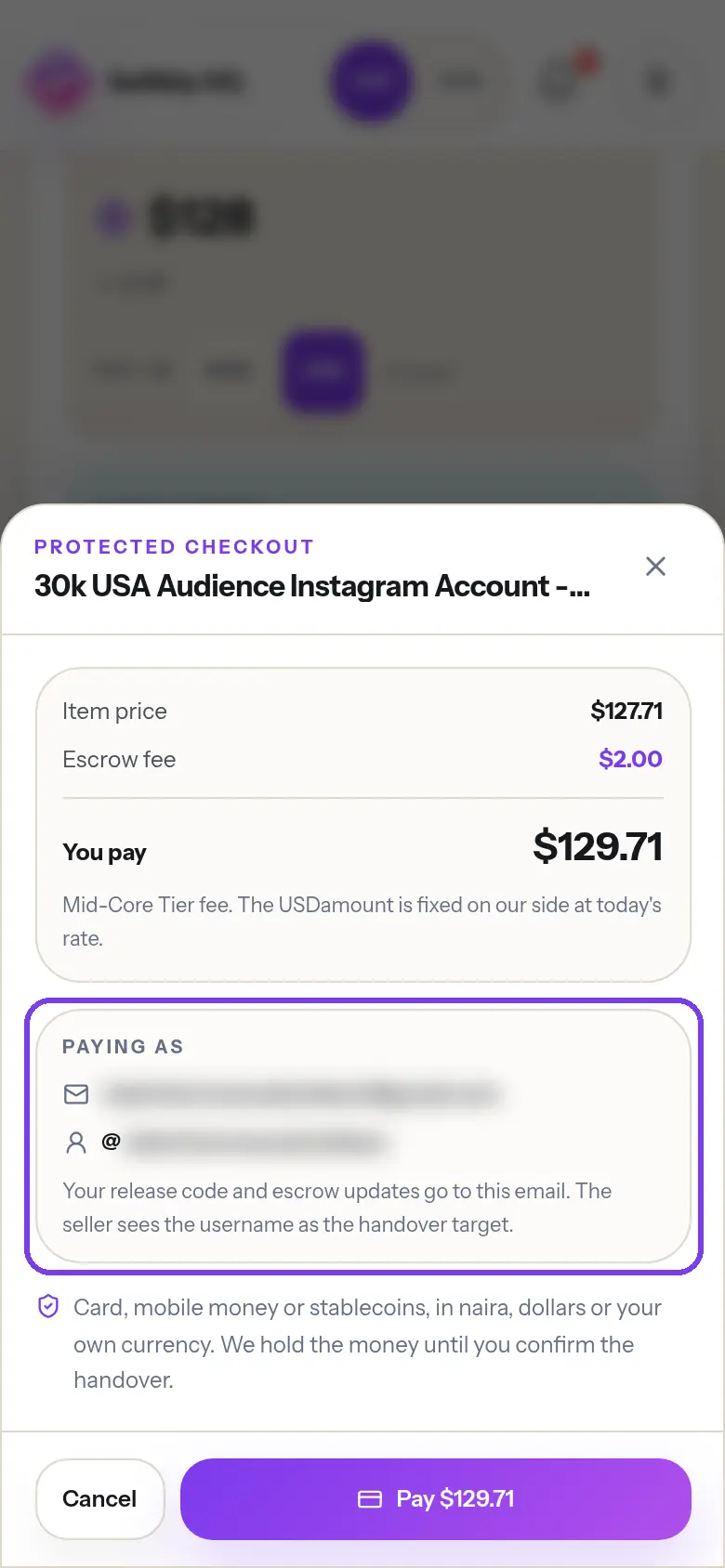
Check the email under "Paying as"
The checkout sheet shows the price, the escrow fee and the total. Under "Paying as" is the email of the account you are signed in with.
That is where your release code will go. If you cannot open that inbox, sign in with the right account before you pay.
If a seller sent you a payment link
3Type your own email on the payment page
A seller's link looks like sellibly.com.ng/pay/SLB-... and opens a secure payment page with the amount, the fee breakdown and a payment route.
Under "Buyer email", type an email you can open right now, then tap "Continue to secure checkout". Your release code goes to this address and nowhere else.
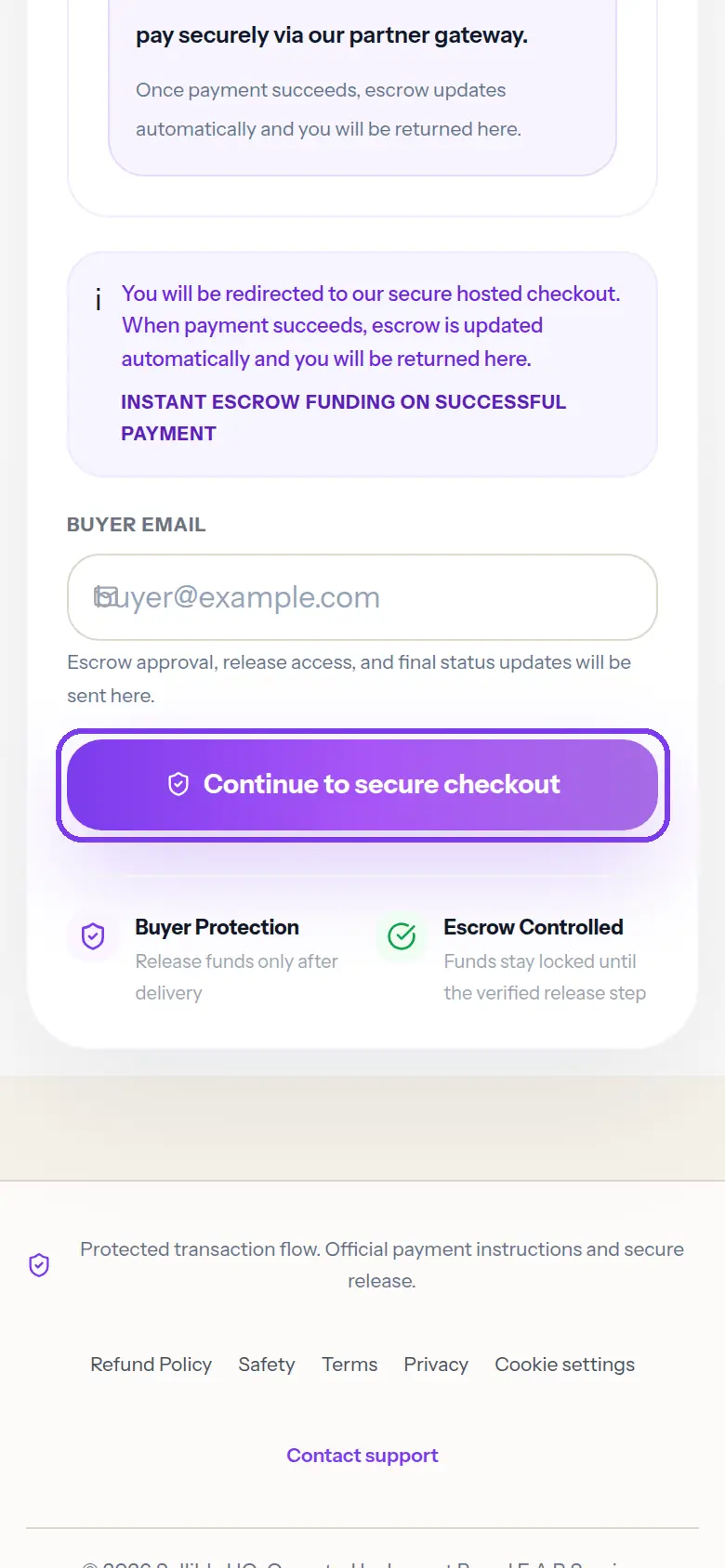 Never let the seller fill in this email for you. Whoever owns the inbox holds the release code.
After you pay
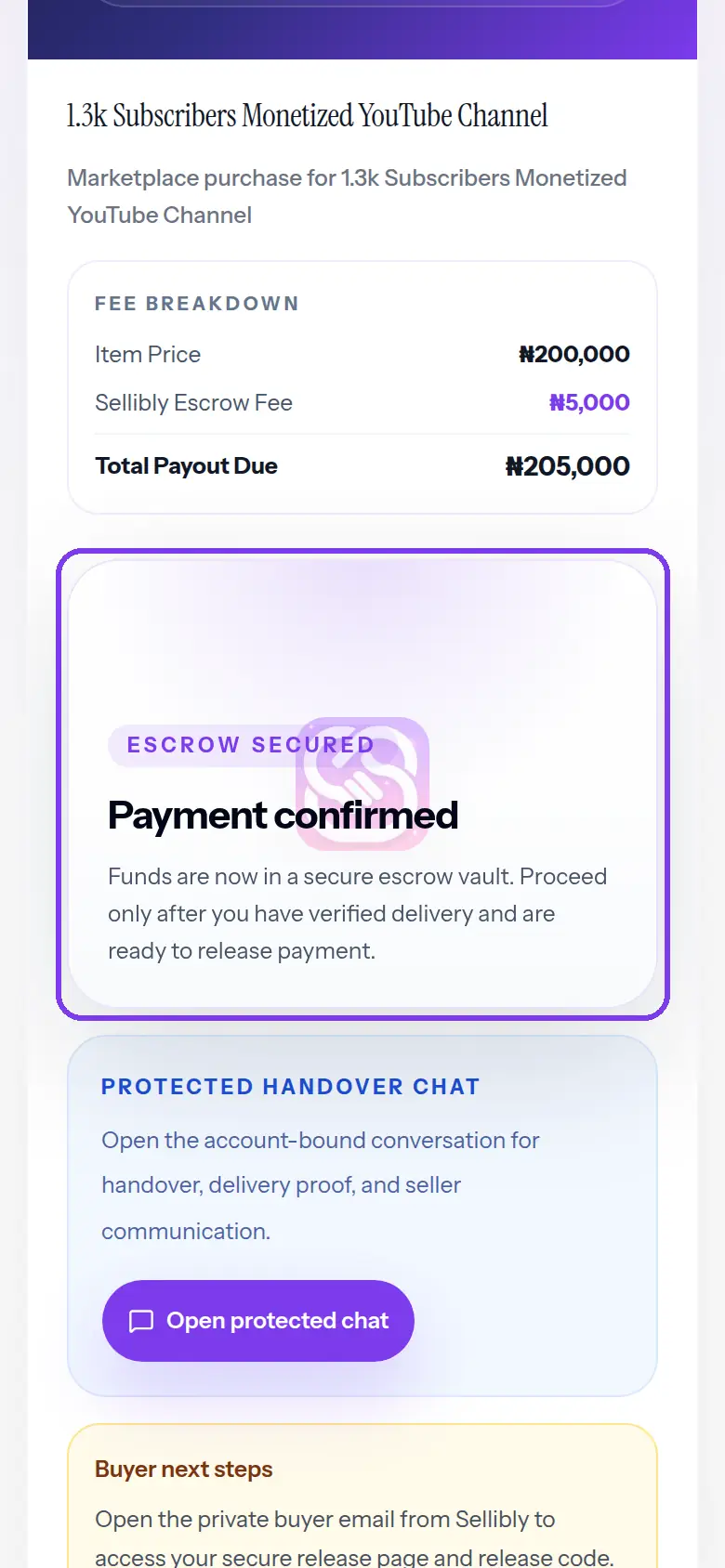
4Wait for "Payment confirmed"
When the payment goes through, the deal page changes to "Escrow secured" and "Payment confirmed". Your money is now held by Sellibly and the seller has been told to start the handover.
- 5
Find the "Escrow Approved" email
Sellibly sends one email to the address from your checkout. The subject starts with "Escrow Approved - Release Code for", followed by your deal, and it comes from noreply@mail.sellibly.com.ng.
Your release code is in the middle of that email. It is 6 characters long, letters and numbers, for example 7F3A9C.
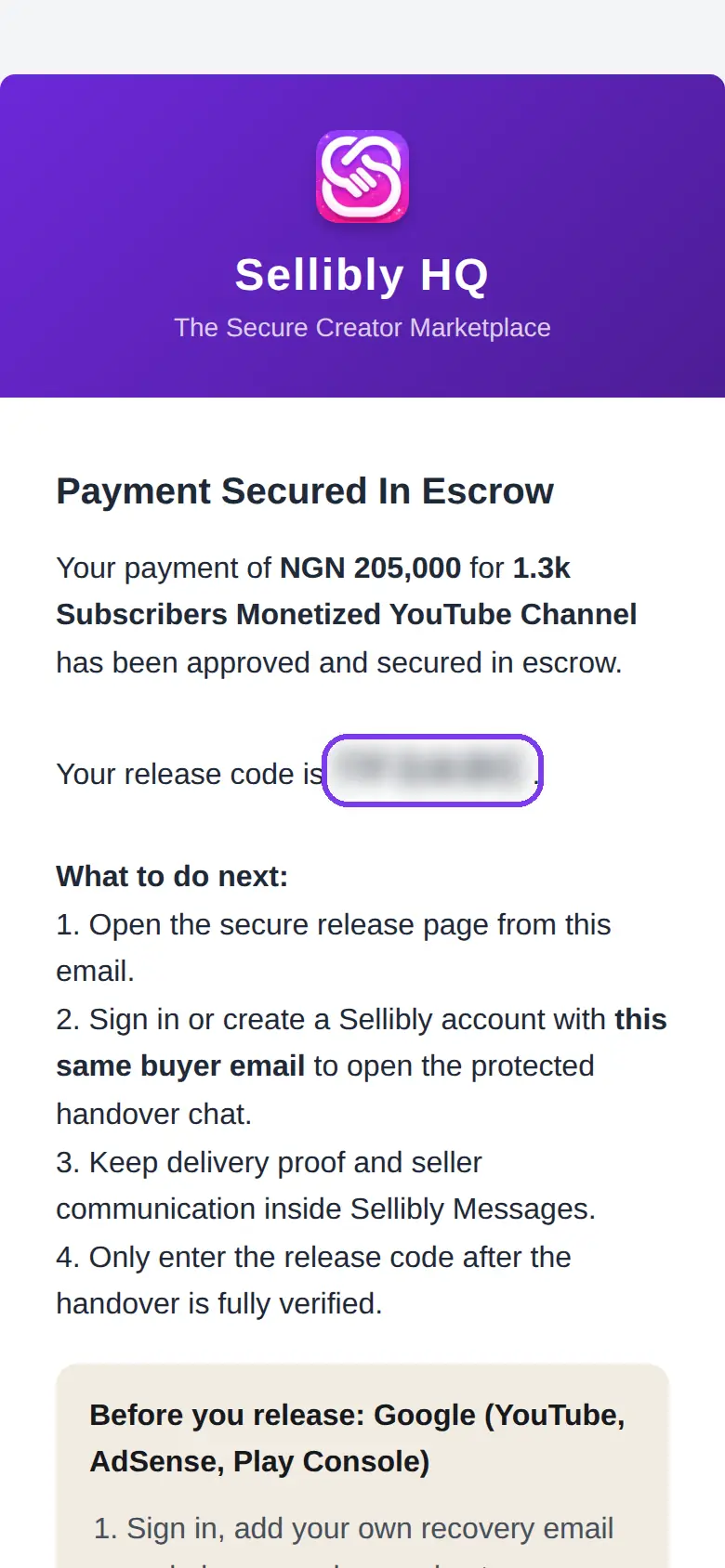 Not in your inbox? Search your email for "Escrow Approved" or "Sellibly", and check the Spam and Promotions folders.
 - 6
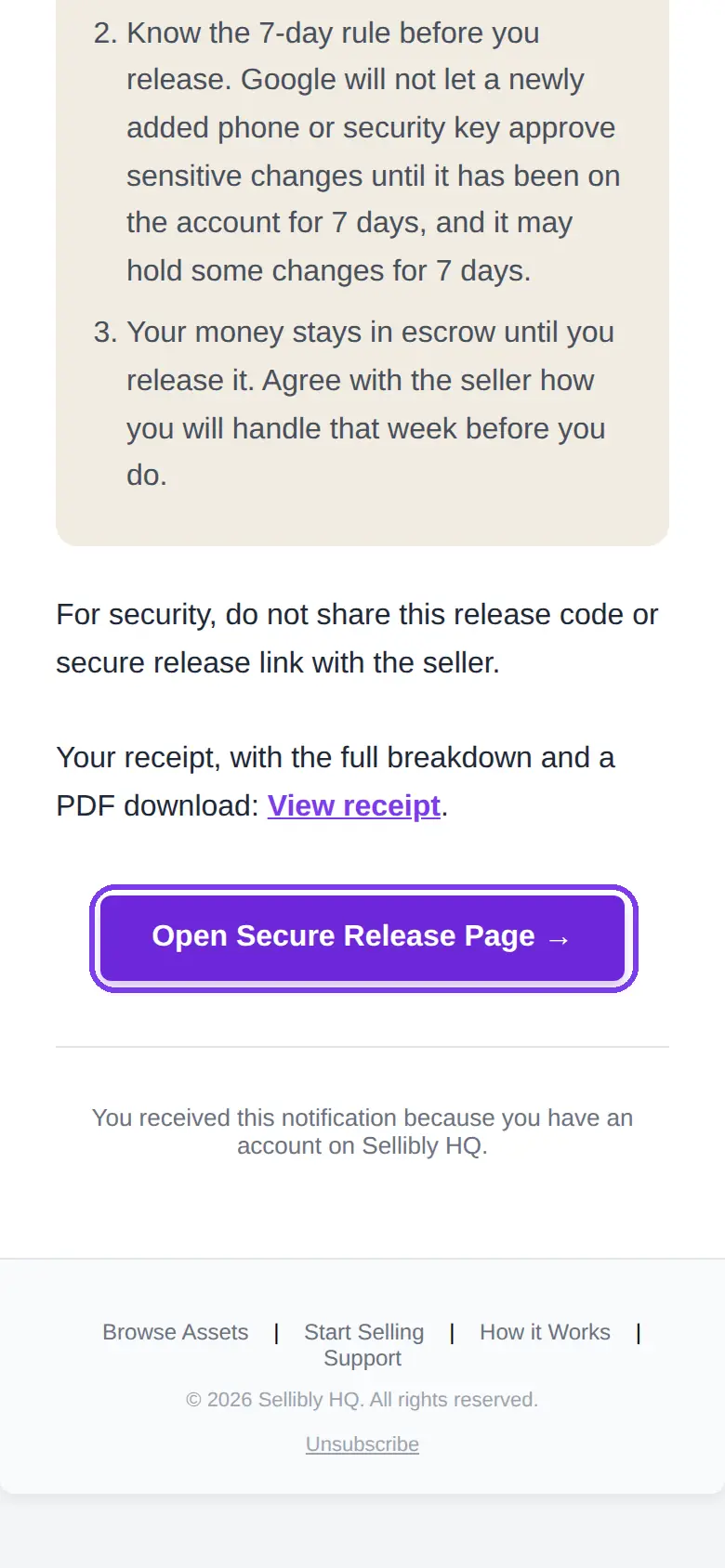
Tap "Open Secure Release Page" in that email
Further down the email is a purple "Open Secure Release Page" button. It carries a private link that only you received.
Always open the deal from this button. The release box only works on the page it opens, so the seller cannot release your money even if they know your deal code.
- 7
Do the handover in the protected chat
Tap "Open protected chat" to talk to the seller. Keep the handover there, so there is a record if anything goes wrong.
Before you release, make sure the account is completely yours: you can sign in, the email and phone on it are yours, and two-step verification is set up with your own details.
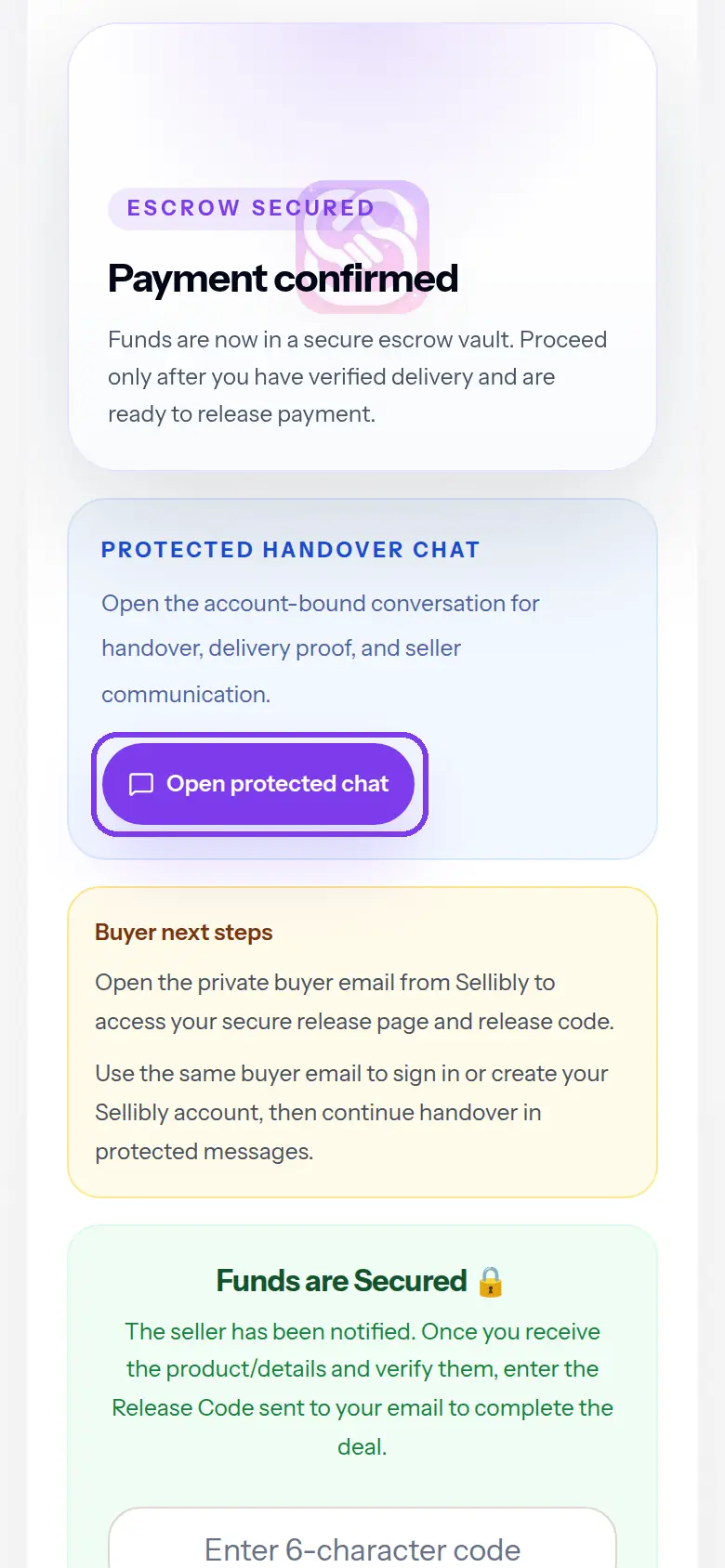 Never send your release code to the seller, in the chat or anywhere else. Anyone who asks for it before you have the account is a red flag.
 - 8
Enter your release code
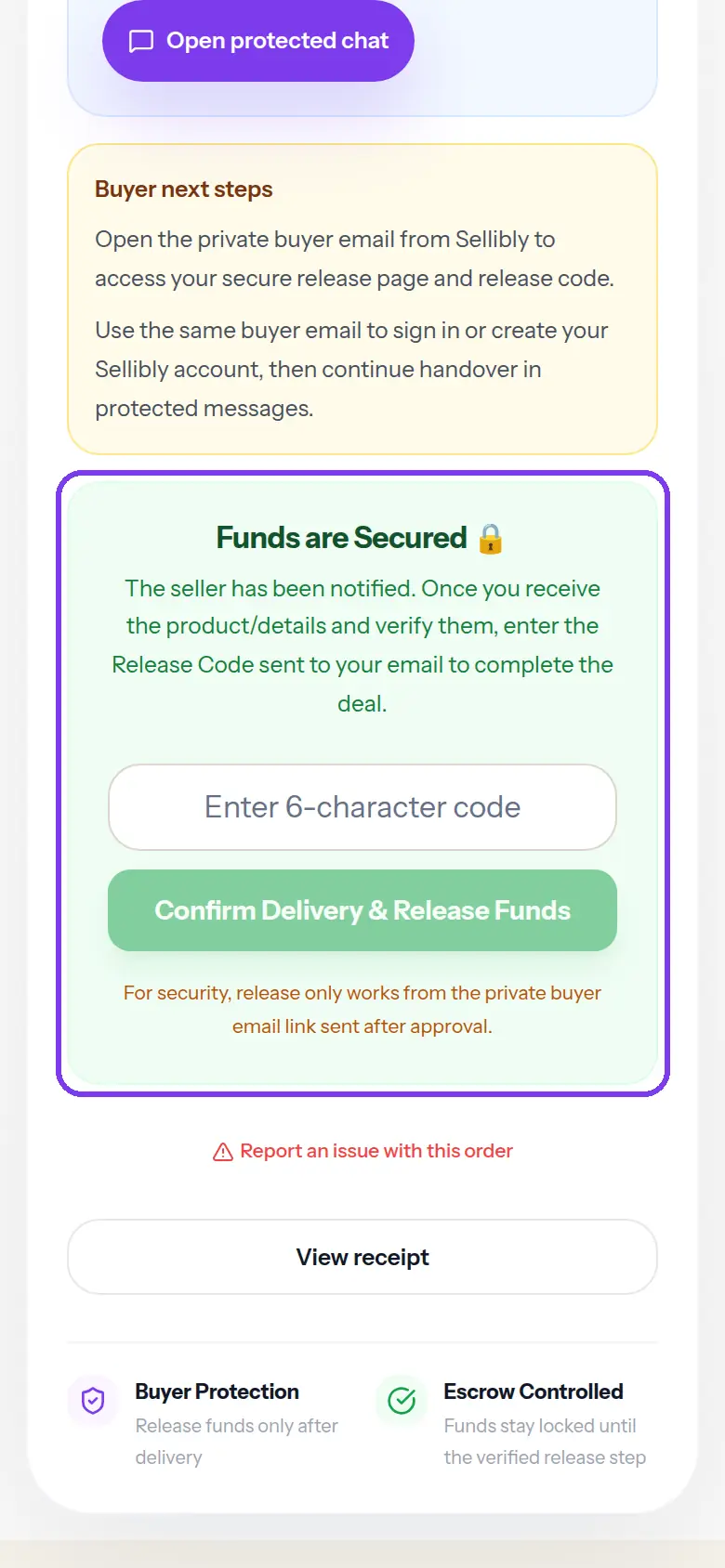
In the green "Funds are Secured" box, type the 6-character code from the email and tap "Confirm Delivery & Release Funds". Capital or small letters both work.
Releasing pays the seller and cannot be undone, so do this last.
- 9
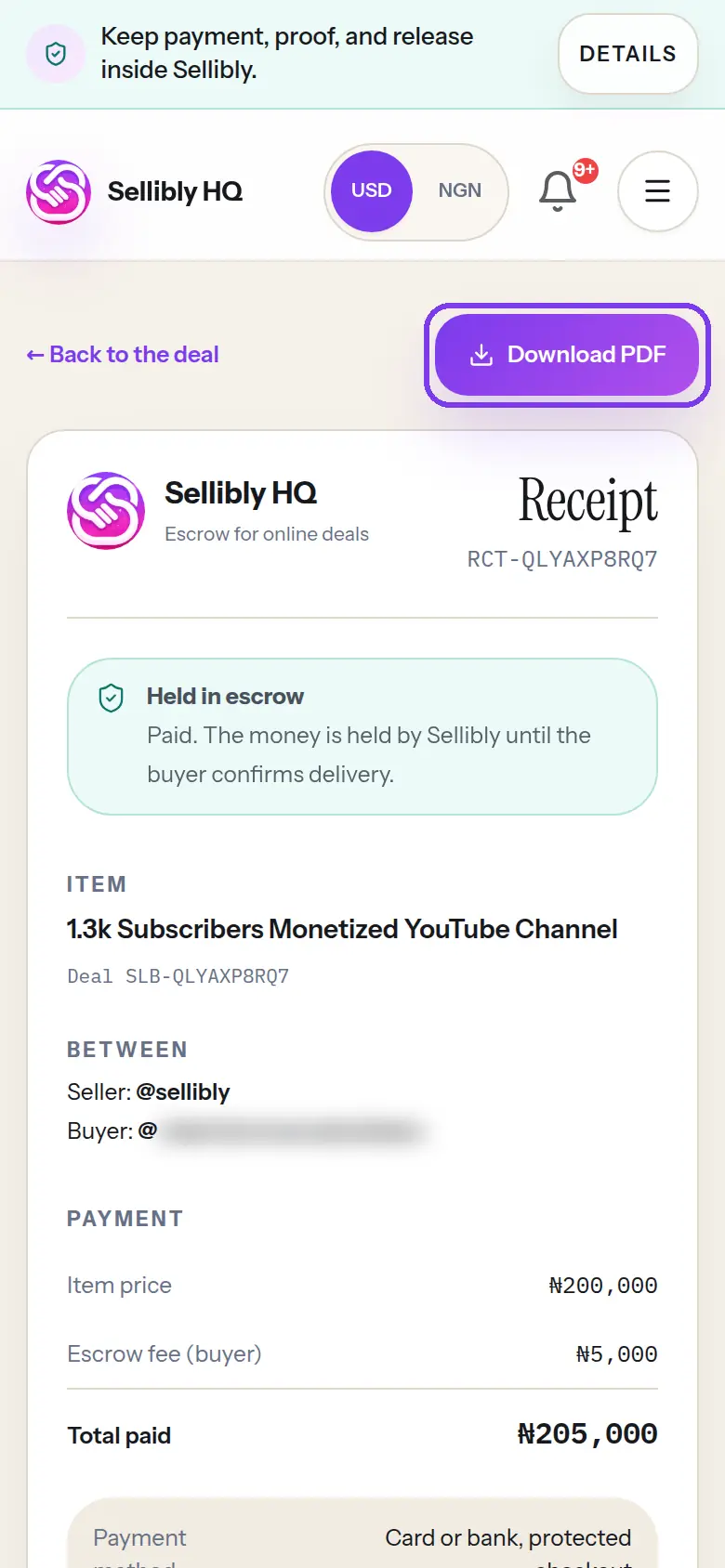
Keep your receipt
Every paid deal has a receipt with the full breakdown: item price, escrow fee, total paid and payment reference. Open it from "View receipt" on the deal page or in the email, and tap "Download PDF" to save a copy.
Cannot find the email?
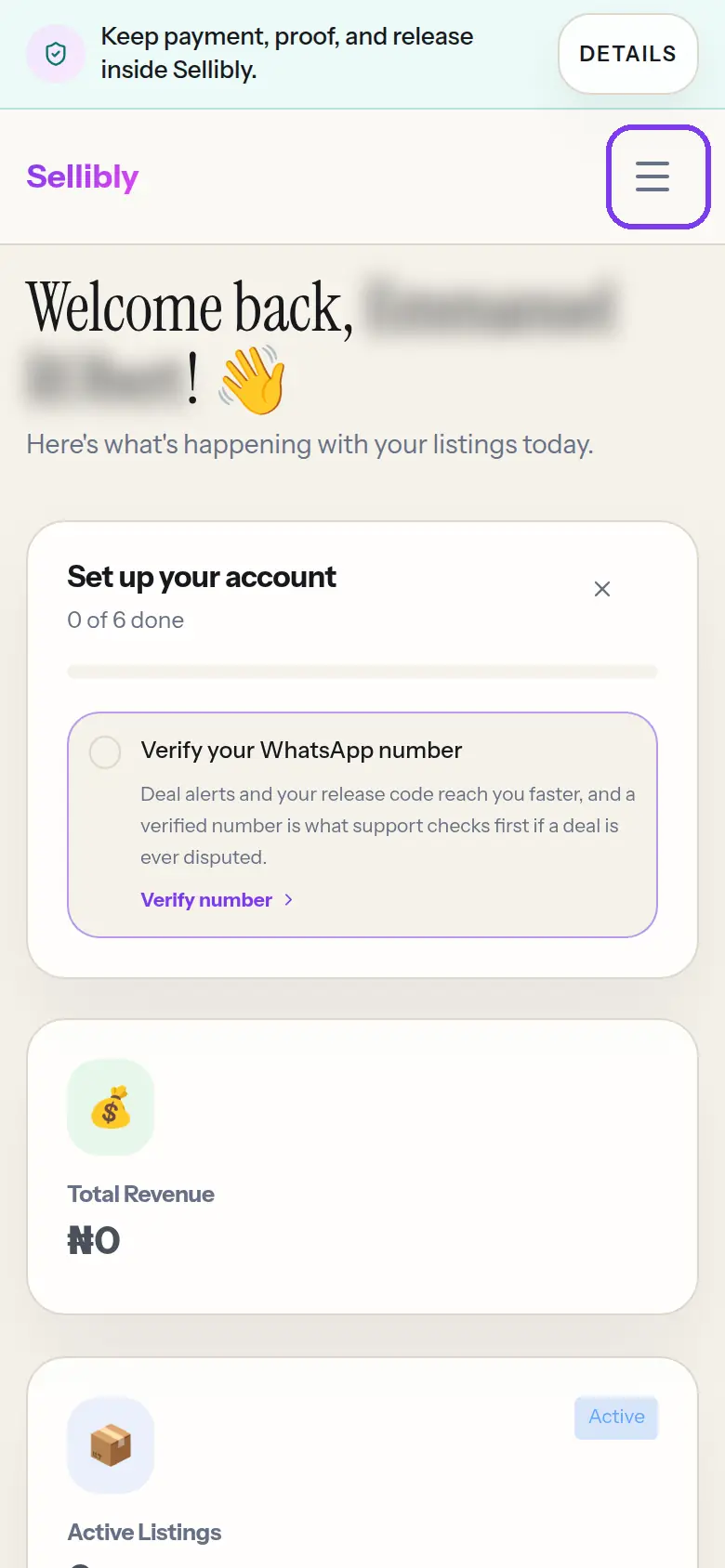
10Open the menu on your dashboard
Sign in with the email you paid with and go to your dashboard. On a phone, tap the menu button at the top right.
- 11
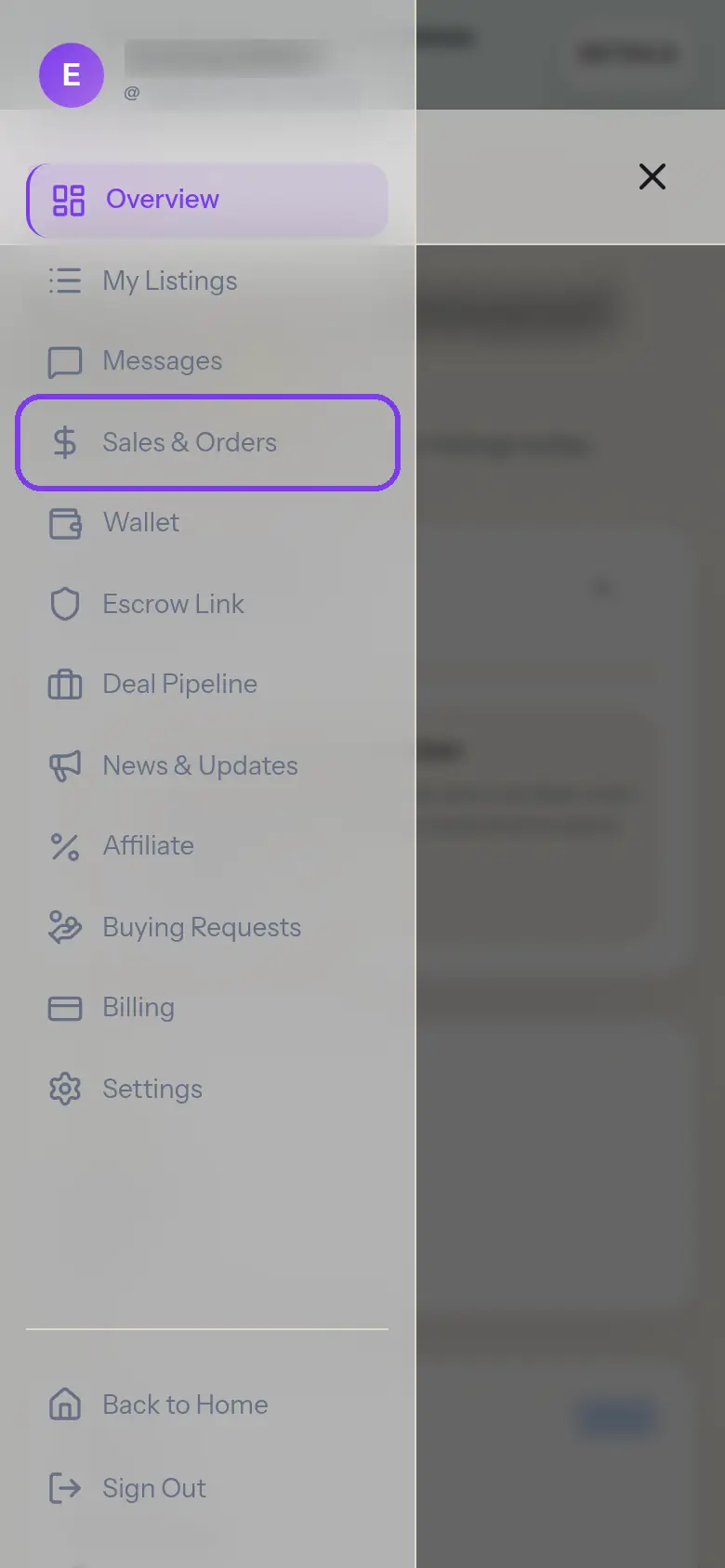
Tap "Sales & Orders"
It is the fourth item in the menu.
- 12
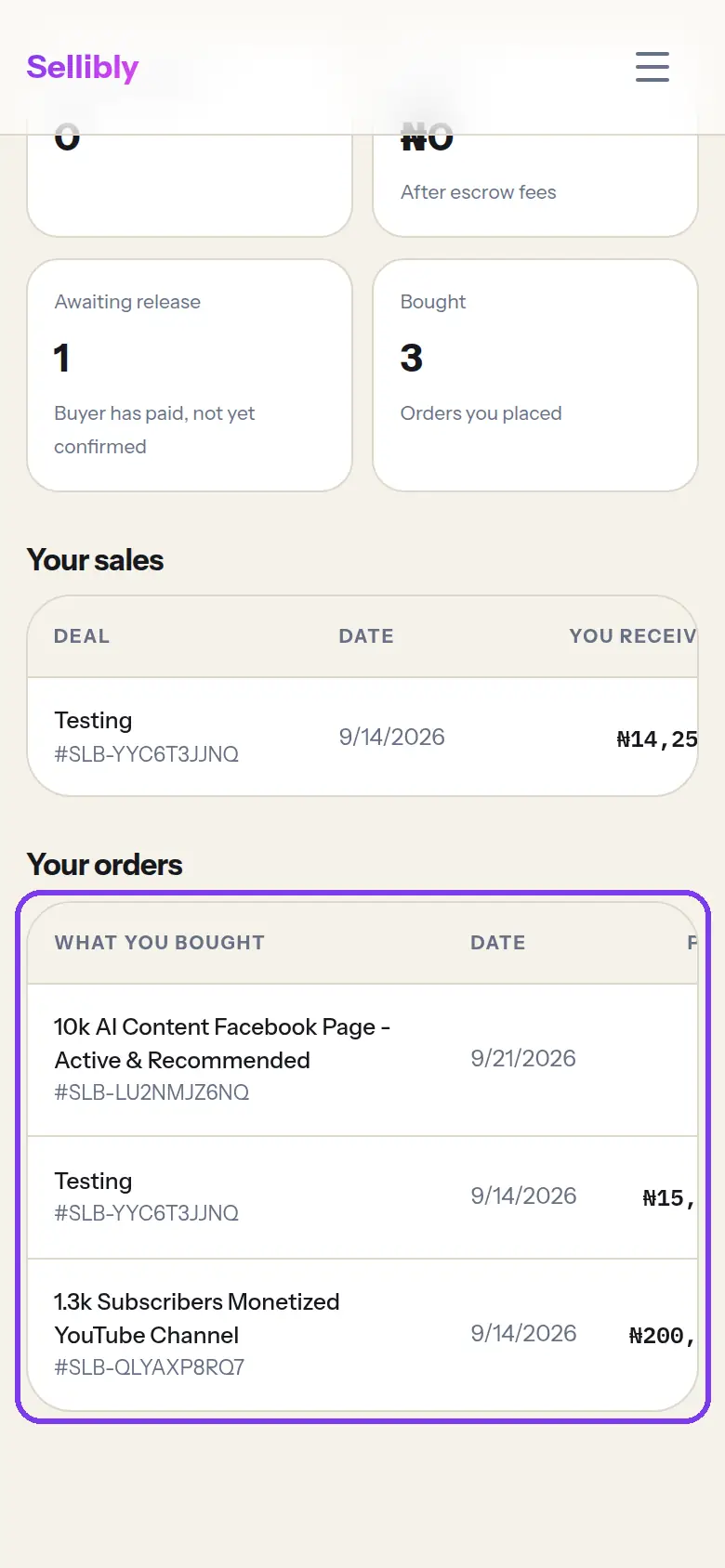
Find your deal under "Your orders"
"Your orders" lists every deal you have paid for, with its code (SLB-...). Tap a deal to open its page, where you can reach the protected chat, the receipt and "Report an issue with this order".
If the deal is listed but the email never came, contact support with that code. The release code itself is only ever sent by email.
Common mistakes
- Opening the deal page from a bookmark or the payment link instead of the email button. It shows "Open the private buyer email from Sellibly", and the release button stays locked.
- Paying the seller directly by bank transfer or crypto. Only payments through a Sellibly link are protected, and only those get a release code.
- Releasing before the account is fully in your name. Once released, the money is the seller's.
- Sharing the code with the seller "so they can confirm". Sellibly never needs the seller to see it.
Questions
I paid but there is no email anywhere. What now?
First check you paid through a Sellibly link: sign in and open Dashboard, then Sales & Orders. Under "Your orders" you will see every deal you have paid for, with its code (SLB-...). If the deal is there, contact support with that code and we will help. If it is not there, the payment did not go through Sellibly.
Can I see my release code in my dashboard?
No. The code is only in the email, by design, so that nobody who gets into your Sellibly account, or sees your screen, can release your money.
The page says the release only works from the email link.
You opened the deal page another way. Go back to the "Escrow Approved" email and tap "Open Secure Release Page".
What if the seller does not deliver?
Do not release. Use "Report an issue with this order" on the deal page, or "Open a Dispute" under the release box. Your money stays in escrow while Sellibly reviews it.
Next steps
Still stuck?
Send us your deal code (it starts with SLB-) and we will look it up.
Contact support